
Quotes
Generate personalised quotes from your CRM, spreadsheet, or form responses, then send them out as a PDF or for signature without rekeying anything.
A Portant quote workflow takes data from a source (Google Sheets, Google Forms, HubSpot, Webhooks), drops it into a Google Doc, Slide, or Word template, and produces a finished quote you can email or send for eSignature.
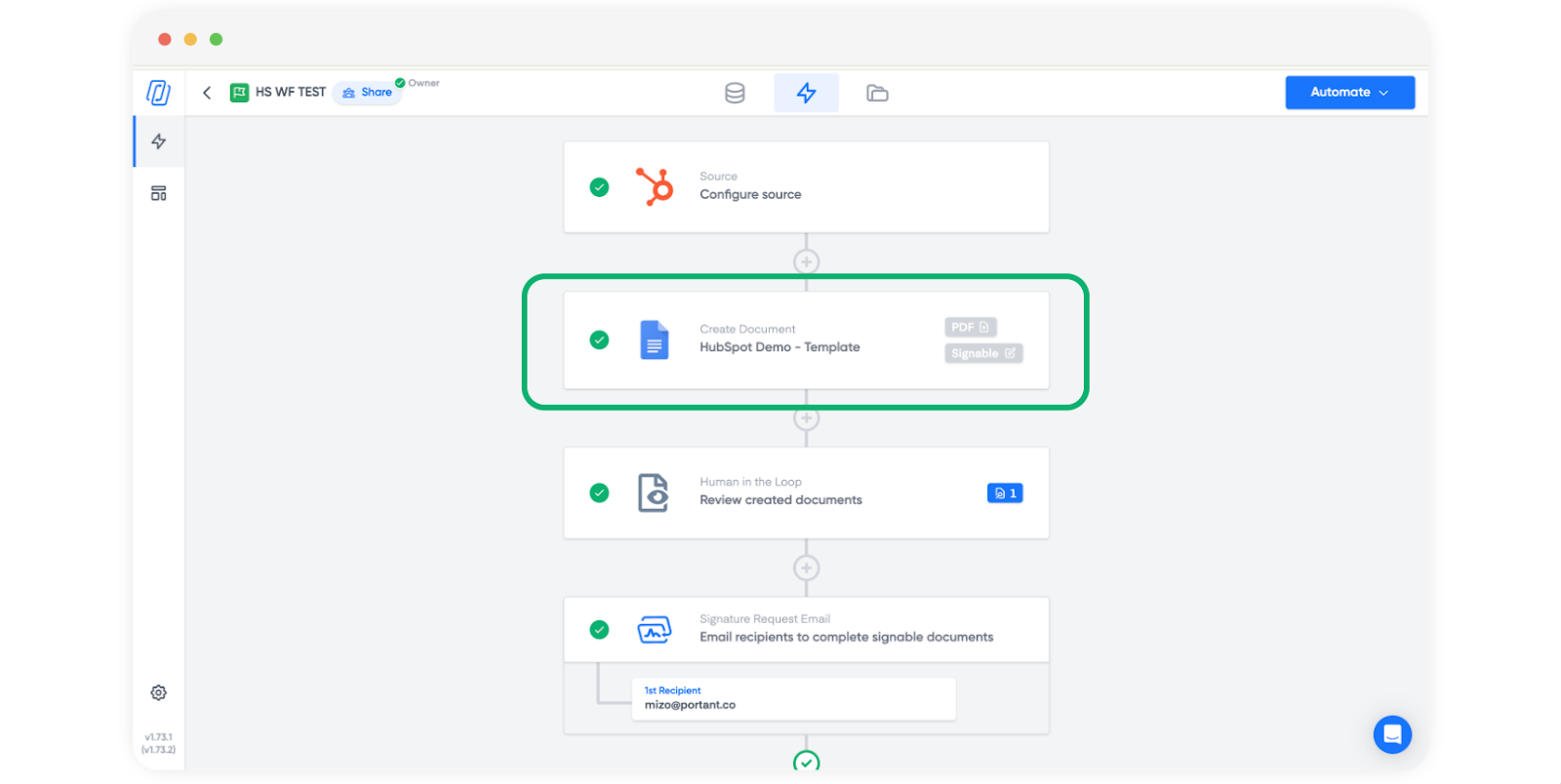
How a quote workflow fits together
Most quotes have three moving parts:
- Customer details at the top of the document (name, company, contact, quote number, valid-until date)
- A list of products or services in a table that can grow or shrink depending on what's being quoted
- A total with subtotals, tax, and a grand total
In Portant, the customer details come from regular tags you place in the template. The product list comes from line items, which use a single table row that expands at merge time (see repeating tables). Totals are calculated from the line items using tag formulas.
Set up the workflow
- Create a new workflow and pick the source that holds your quote data. For deals and contacts, that's usually HubSpot. For a sales sheet, Google Sheets. For inbound requests, Google Forms or a webhook.
- Add a template block and choose your quote document (Google Docs, Google Slides, or Word).
- Place tags for the customer details in the body of the document.
- Add a table for the products. Put one row of line item tags inside it (name, quantity, unit price, total). Portant will repeat that row for every line item in the source.
- Add a totals row beneath the repeating row with
{{=SUM(Line Total)}}or your own formula.
For source-specific guides on grouping line items into one document, see:
- HubSpot: add multiple line items into a single document
- Google Sheets: group rows into one document
- Webhooks: group payload arrays into one document
Send the quote
Once the document looks right, decide how it leaves Portant:
- Email it as a PDF using a Send via email block.
- Send it for signature with an eSignature block when the quote needs to be accepted.
- Save the output to a Drive or OneDrive folder using Outputs.