
Incident reports
Turn an incident form into a fully formatted report PDF, then route it for signature, all without retyping a single field.
This guide builds the workflow on top of Google Forms so anyone in the team can submit an incident and the report is generated automatically. The same pattern works with Google Sheets, Microsoft Forms, or webhooks.
What you'll learn
- Create a new workflow
- Customise your incident report template
- Add a signature request (optional)
- Add the email block for the signed copy
- Turn on the workflow and test it
Create a new workflow
Click "Add Workflow" in the top right.
Choose Google Forms as the source.
Pick the form from your Google Drive.
Once the form is connected, Portant lists the responses on the right. If there are no responses yet, the section will be empty.
Add a template block by clicking "Connect" on the right.
Choose Google Docs as the template type.
Customise your incident report template
Portant opens the template alongside a source table. Each row in that table is one of your form questions.
To insert a form answer, click "Copy" next to the question and paste the {{tag}} into the document where you want the answer to appear.
You can also add image tags to documents and presentations, and edit a tag's display name by clicking on the row.
Set the Output Name for each generated document. Tags work here too, which is useful for naming files like "Incident Report - {{Date}} - {{Reporter Name}}".
Beneath the Output Name field is the option to save each output as a PDF. PDFs are stored on the Outputs tab.
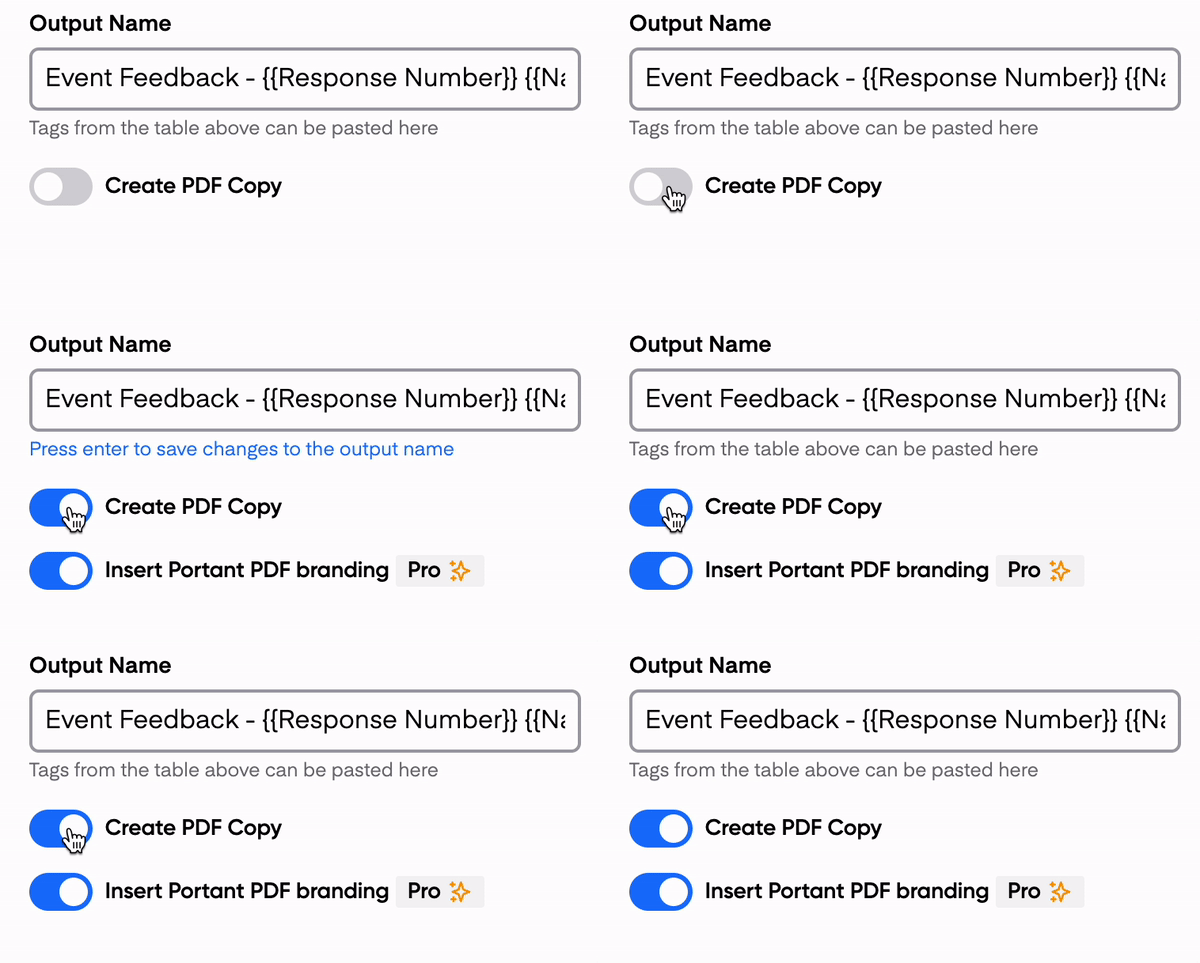
Free accounts include a Portant watermark in the PDF footer. To remove it, upgrade to Pro or Teams.
That's the document side done. Next, you can add a signature step so the right people sign off on each report.
Add a signature request (optional)
Click "Add" to insert a signature request block.
Click "Insert" to add signature and date placeholders to the document.
When inserting the placeholder, choose "Move with text" so it sits inline with the rest of the document and moves with surrounding content.
You can also insert placeholders for text fields and checkboxes the signer needs to fill in.
Customise the signature request email so the signer knows what they're signing. For more, see customise the signature request email.
When you add a signature request, Portant adds an email block too. This block sends the final signed PDF to the recipients.
Customise the email body the same way you did the signature request.
Turn on the workflow and test
When the workflow is set up, click "Automate" in the top right and switch Auto-create on. Every new form response will now run through the workflow and produce a new report.
In the same panel you can also process older form responses with "Process Existing Responses". Choose all responses or pick a custom range.
To test, submit a response in your form. A new document should appear on the Outputs tab within a few seconds.
That's it. Every incident reported through your form now produces a fully formatted report, ready to sign.