
Save document links back to your sheet
Once Portant generates a document from a row, it can write the link to that document back into the same row. This is useful when other people need to find the output without logging into Portant or hunting through Google Drive.
This page covers how to add the block, choose which links to save, and where they appear.
Add the "Write links to source" block
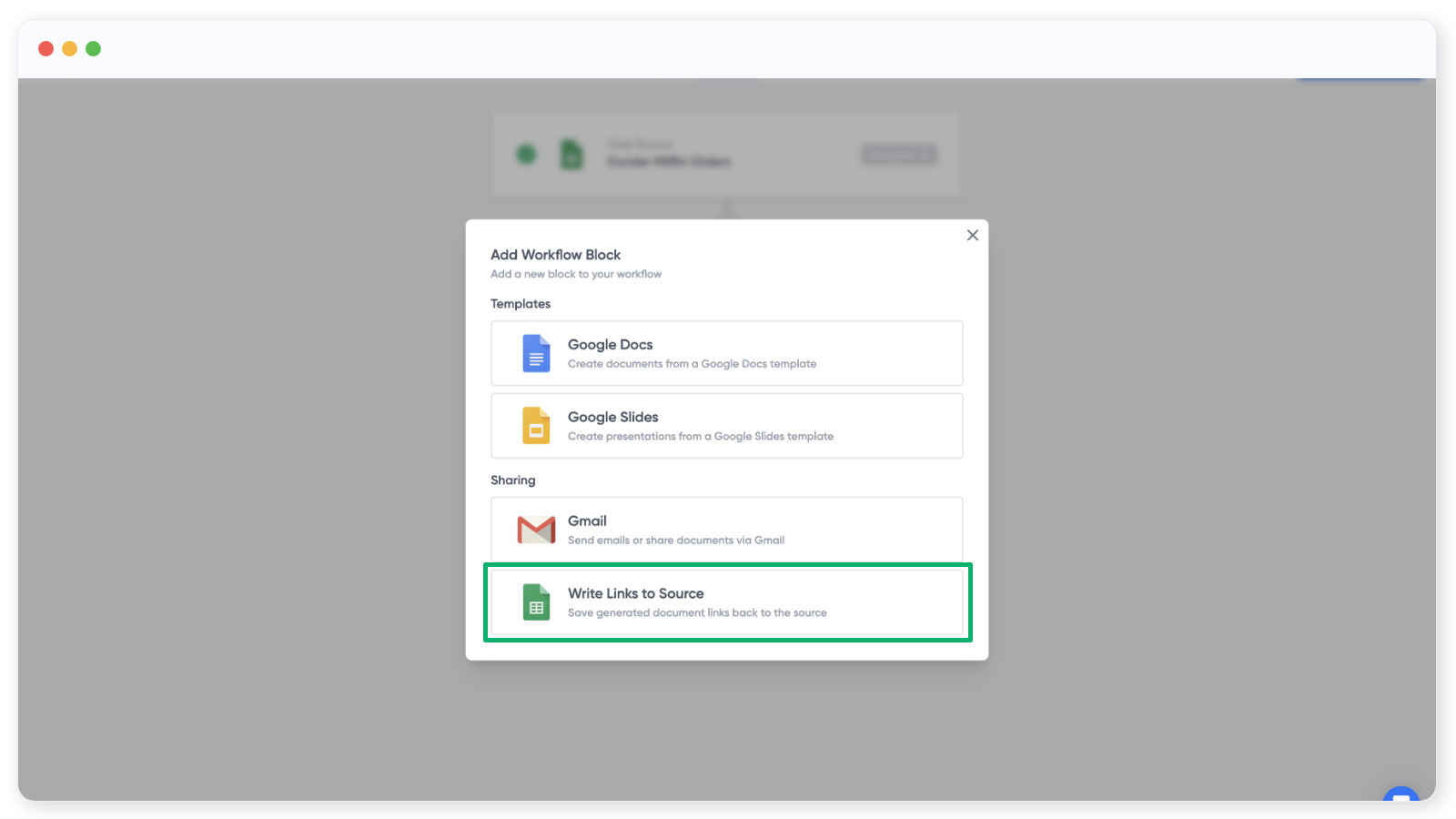
You can only add this block to a workflow that uses Google Sheets as the source. Click Add block, and in the Sharing section choose Write links to source:
Choose which links to save
Once the block is in your workflow, tick the checkbox next to each document type whose link you want saved back to the sheet:
Where the links appear
The links show up the next time the workflow runs. On the first run, Portant adds two new columns to the end of your sheet and writes the links there. On every following run, it reuses those columns.
You can rename these column headers, but they must keep
[Portant]in the name so the workflow can find them again.