
Google Sheets
Google Sheets is the easiest source to start with if your data already lives in a spreadsheet, or if you can export it from another tool as a CSV. This page covers how to set up a sheet for Portant, process rows manually, turn on auto-create, and group rows together.
Set up your Google Sheet
Put your headers in the first row and the data in the rows underneath, like this:
Each row creates one document, unless you use data grouping to combine multiple rows into a single output.
Process rows manually
You have two ways to process a sheet: manually pick which rows to run, or turn on auto-create so new rows are processed automatically.
To run rows manually, click the Automate button in the top right of the workflow:
To process every row, click Start:
To process a subset, switch the dropdown to Custom range and enter the rows you want:
In the example above, rows 3 to 5 and row 11 will run. Use a hyphen for a range (3-5) and commas for individual rows (3, 5, 11).
Turn on auto-create (Pro)
Auto-create runs the workflow automatically every time a new row is added to the sheet. Open the Automate menu and toggle auto-create on. Once it's running, you'll see a status indicator in the top right:
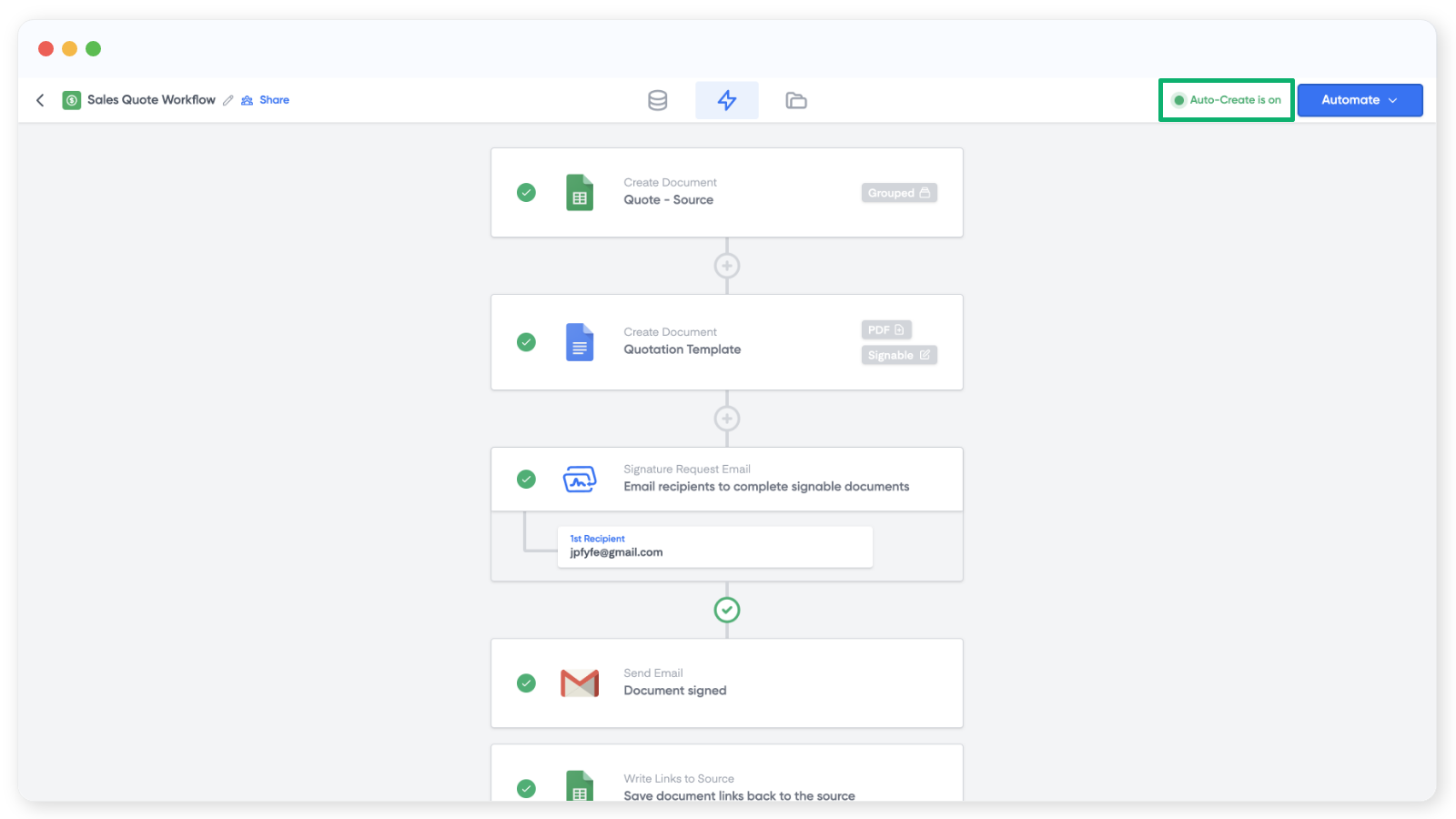
For the full setup, including how Portant detects new rows and how to handle formula columns, see auto-create from Google Sheets.
Group multiple rows into one document
If you have several rows that belong on the same document (for example, line items on an invoice), use data grouping. You pick a column that identifies which rows belong together, and Portant places those rows into a single table inside the document.
The full setup lives on the line items > data grouping page.