
Manual signature request from a PDF
Upload a finished PDF, drop in the signature and other fields you need, and send it for signing. Use this when you've already got the document ready and don't need to generate it from a template.
What you'll do
- Upload your PDF
- Add recipient names and email addresses
- Add signature and fillable fields
- Add the email message, optionally enable the audit trail, and send
- Track sent and signed documents
1. Upload your PDF
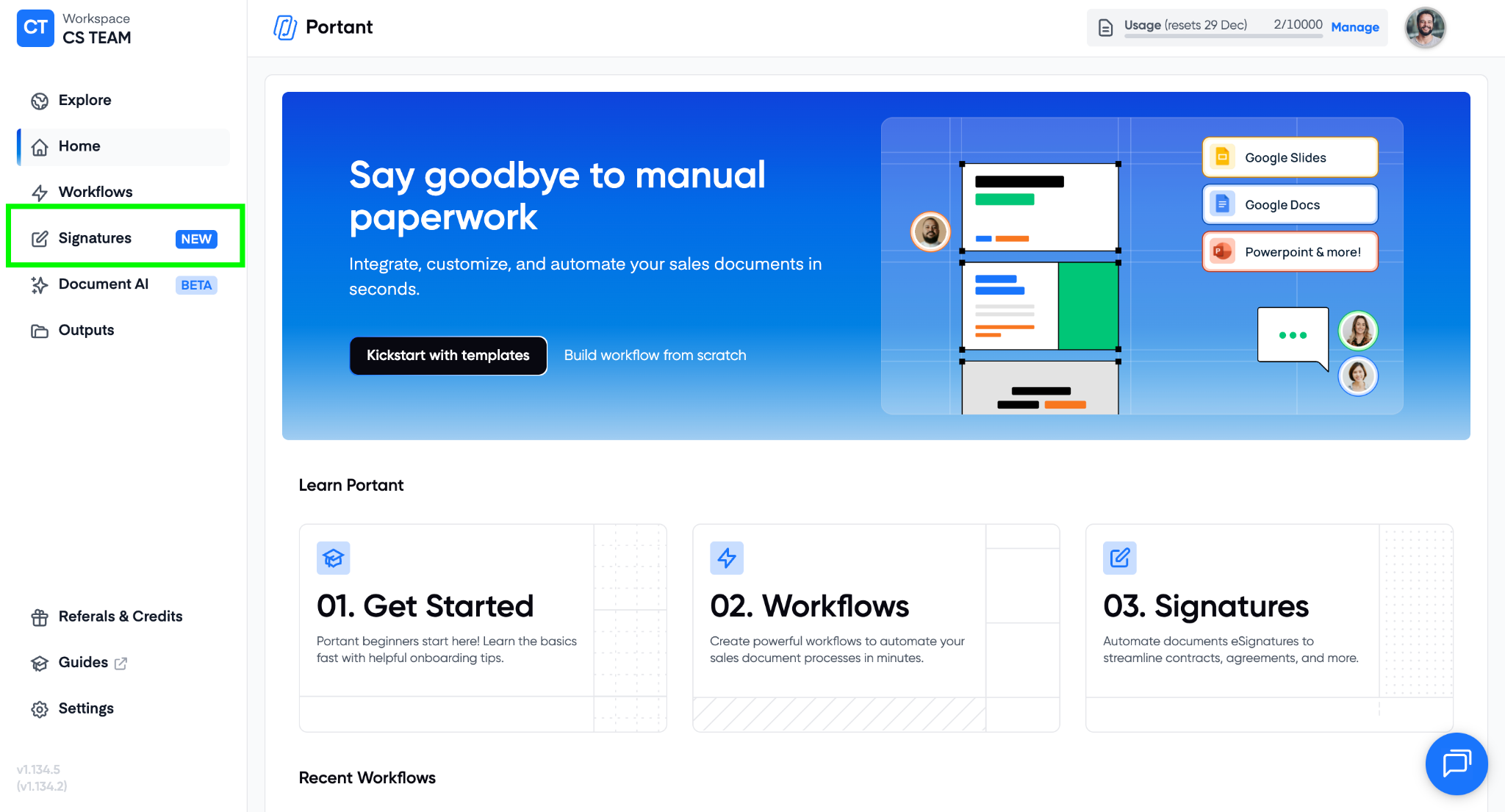
Go to your Portant Signatures tab and create a new signable document.
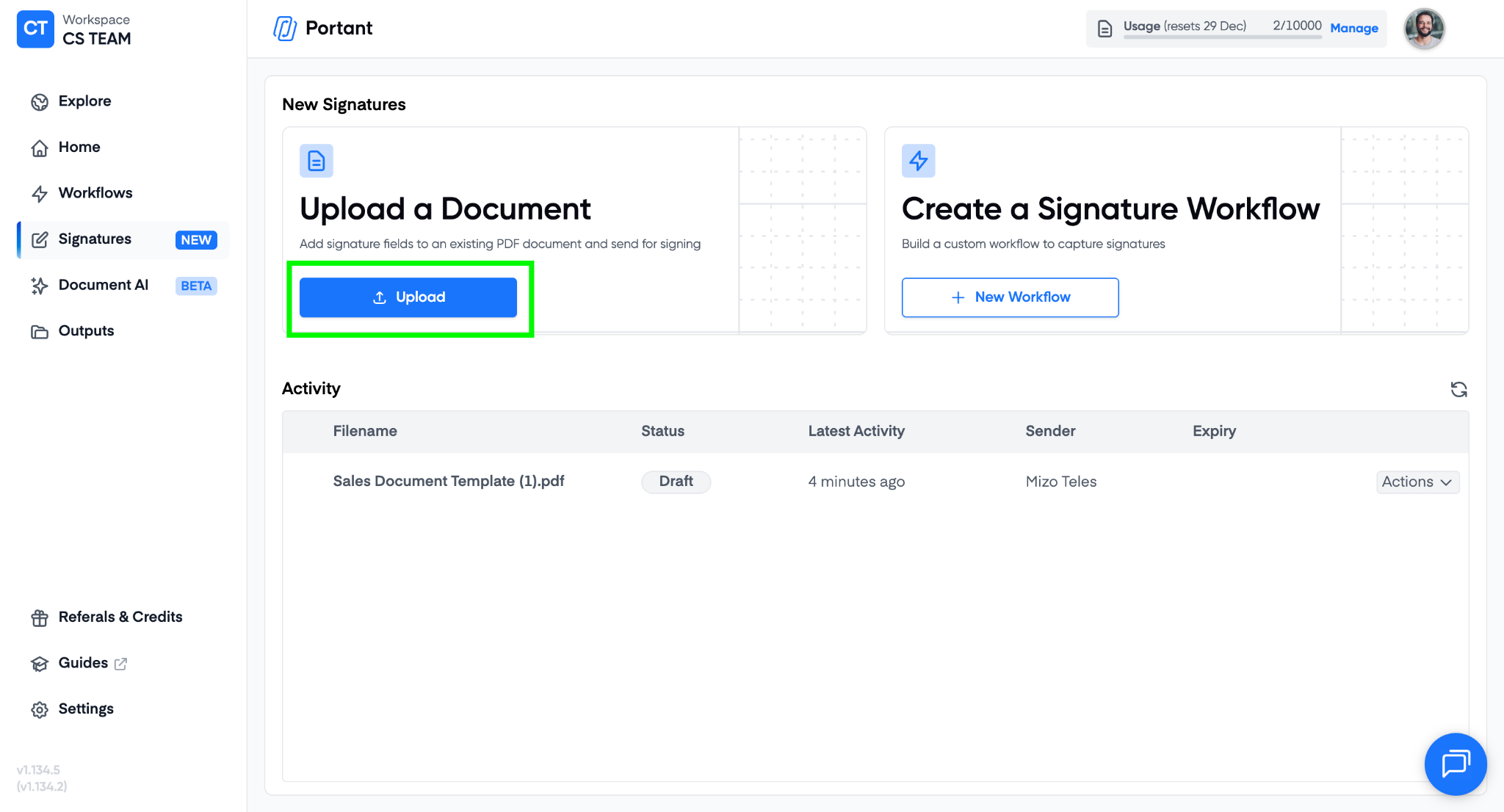
Click Upload and pick the PDF file you want to send.
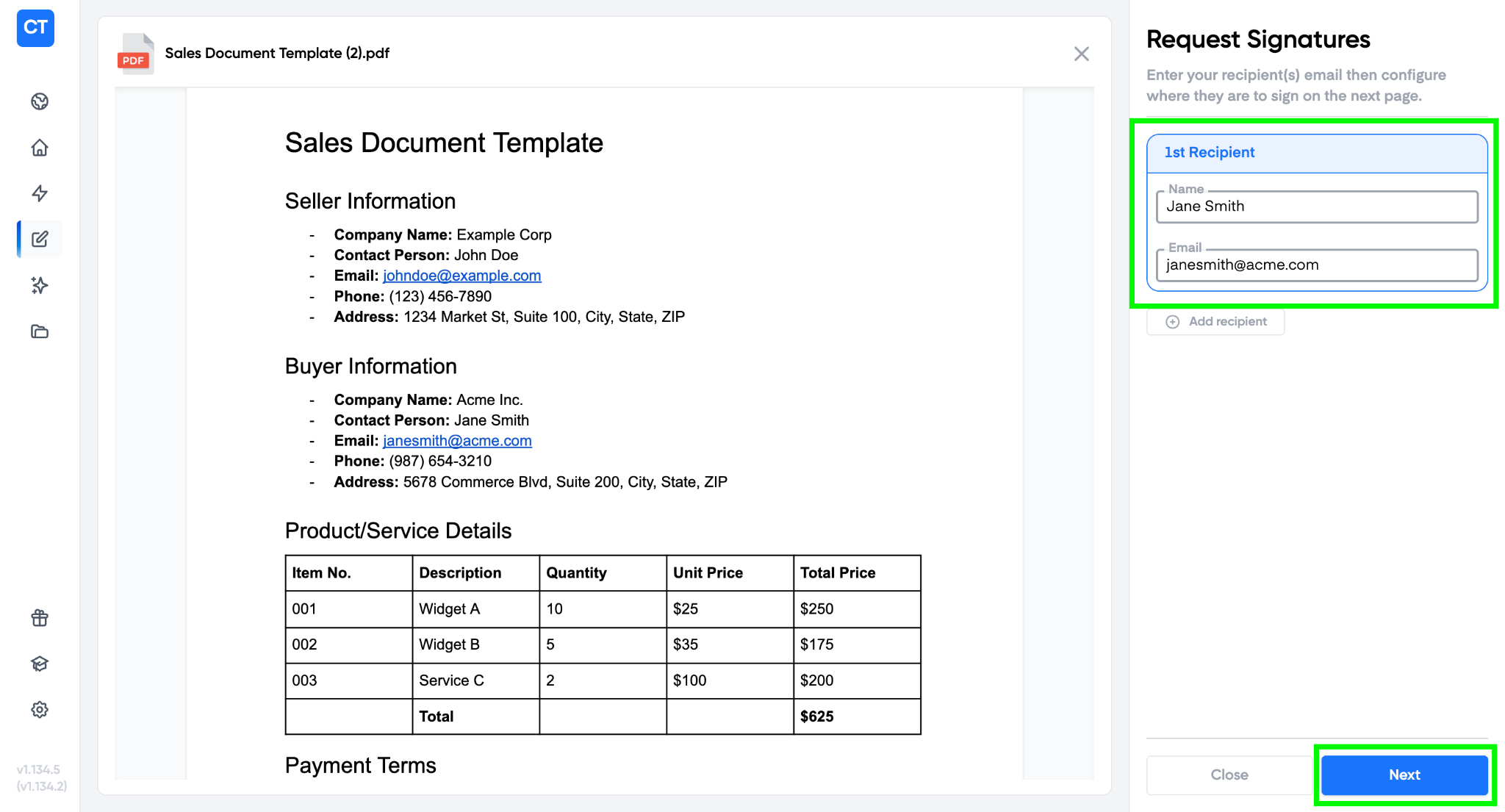
Once uploaded, the PDF appears on screen and you can move on.
2. Add recipient names and email addresses
Enter the name and email of the person who needs to sign, then click Next.
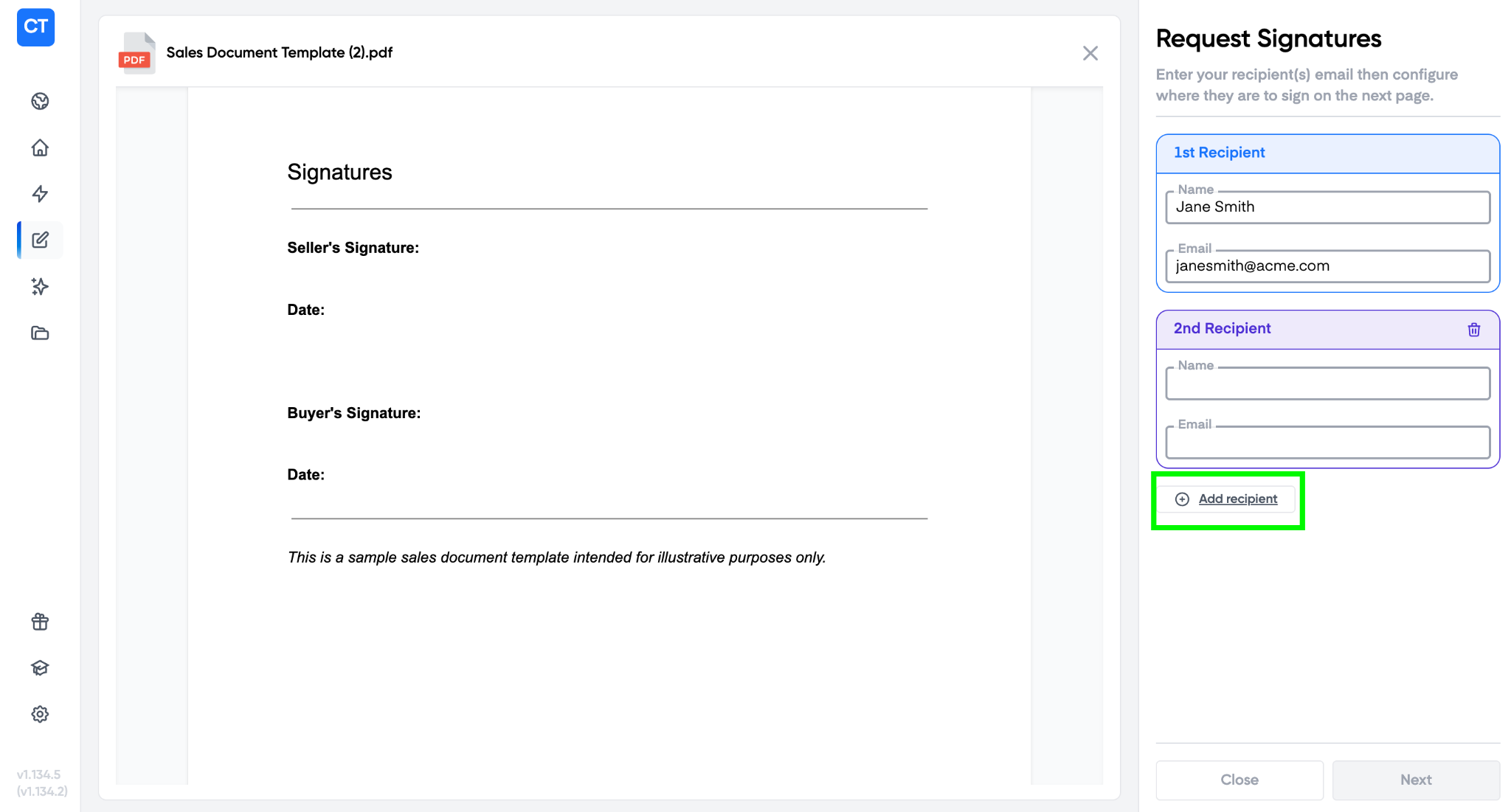
Note: Need more than one signer? Click + Add Recipient to add up to four people.
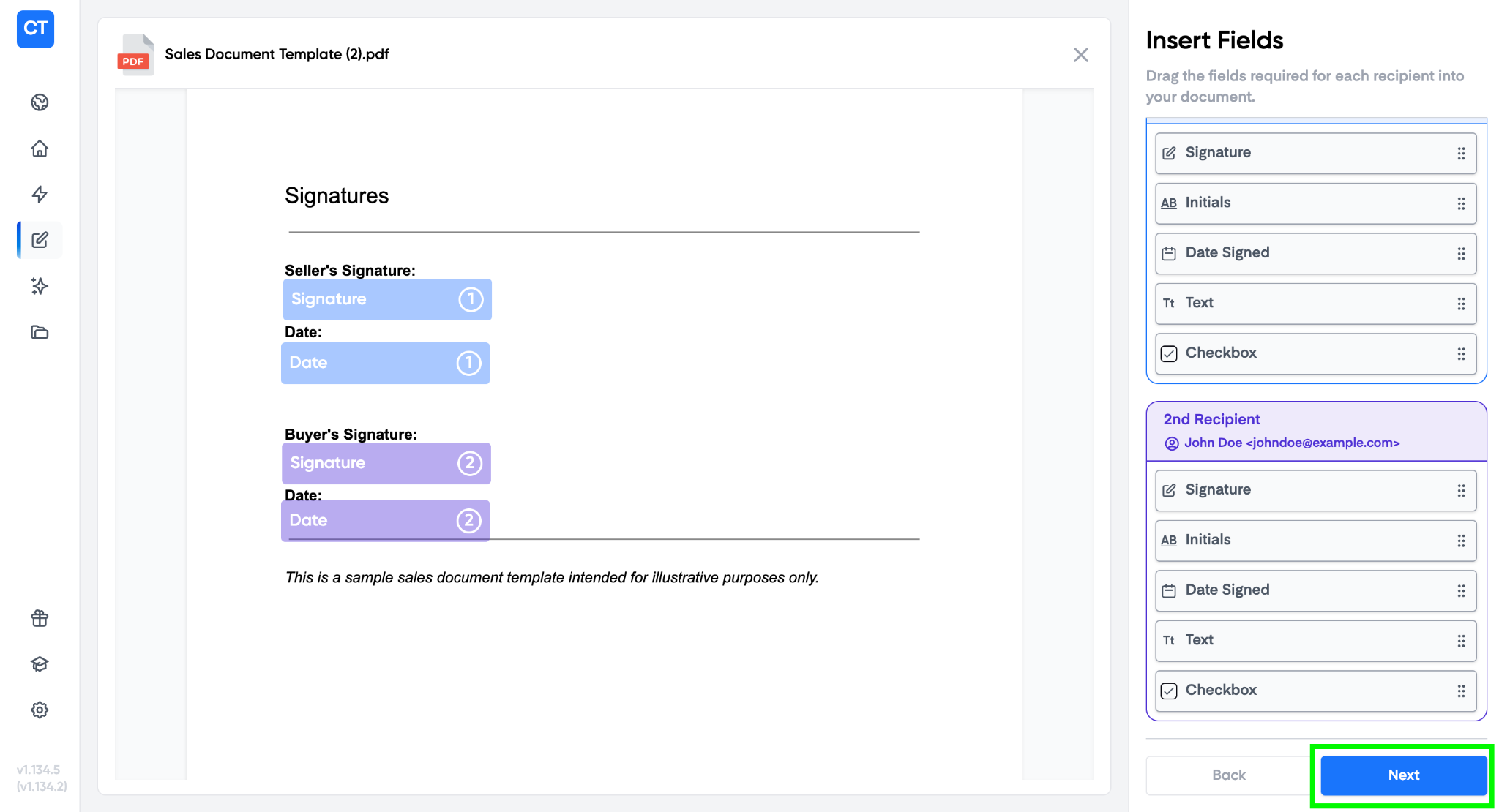
3. Add signature and fillable fields
Drag fields onto the PDF: signature, text, date, checkbox, and so on. Resize and reposition each one as needed. Click Next when the layout is right.
4. Add the email message and send
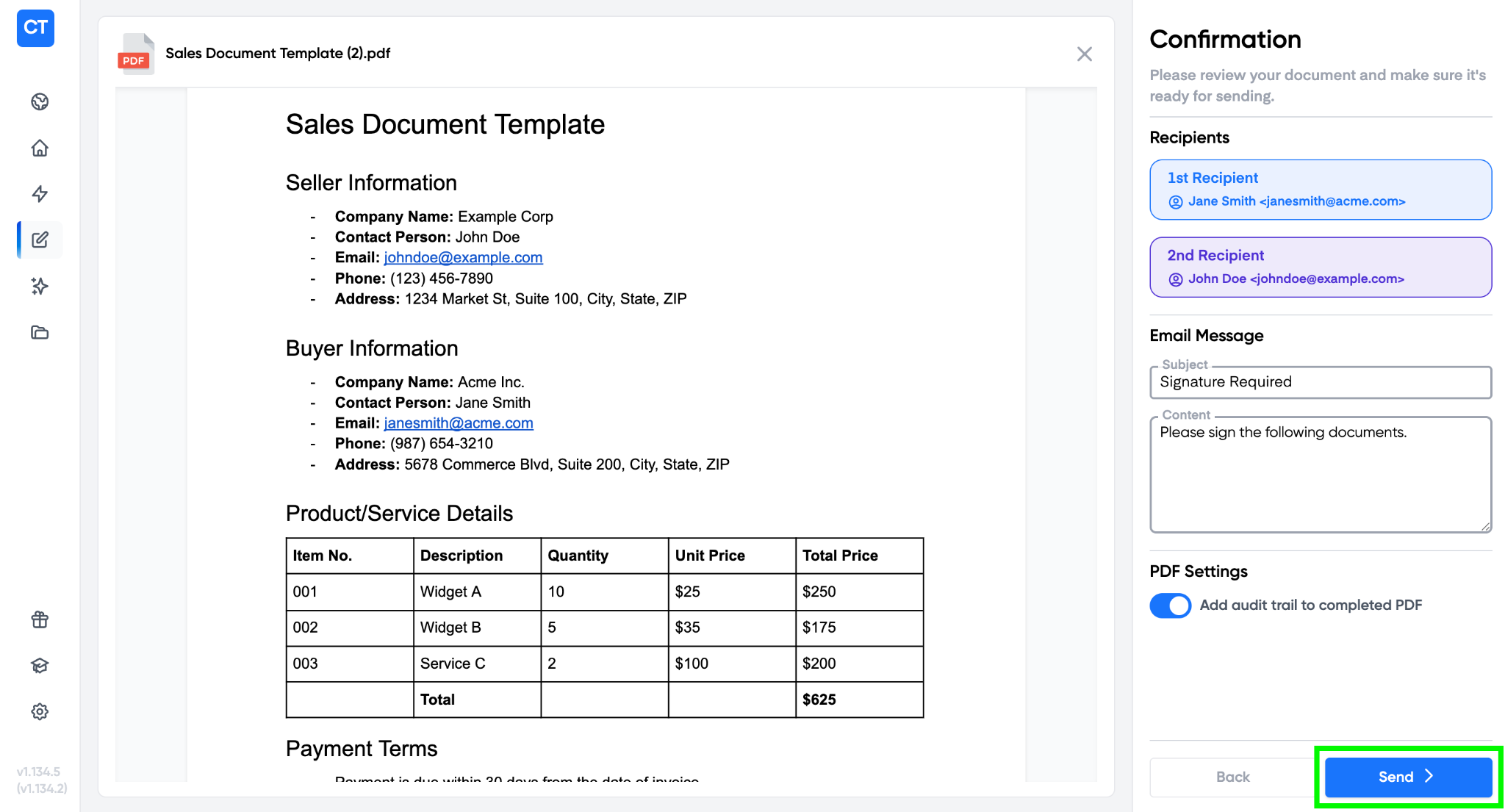
Set the subject line and message your recipients will receive.
If you want an audit trail in the final signed PDF, toggle that option on. See Audit trail for what gets recorded.
Click Send.
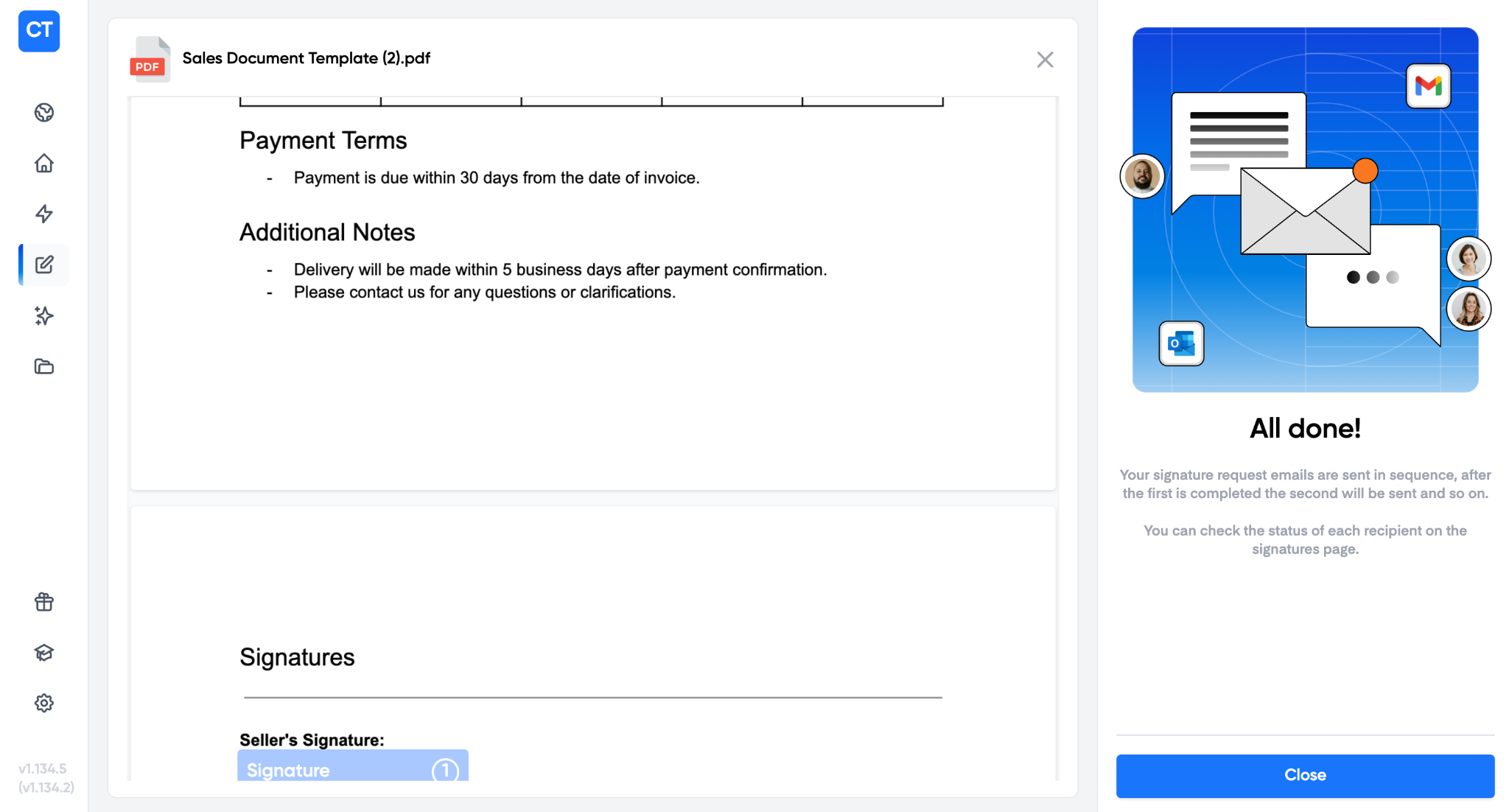
You'll see an All Done confirmation when the document has been sent. Click Close to return to the dashboard.
5. Track sent and signed documents
The Portant Signatures dashboard shows the status of every document you've sent.
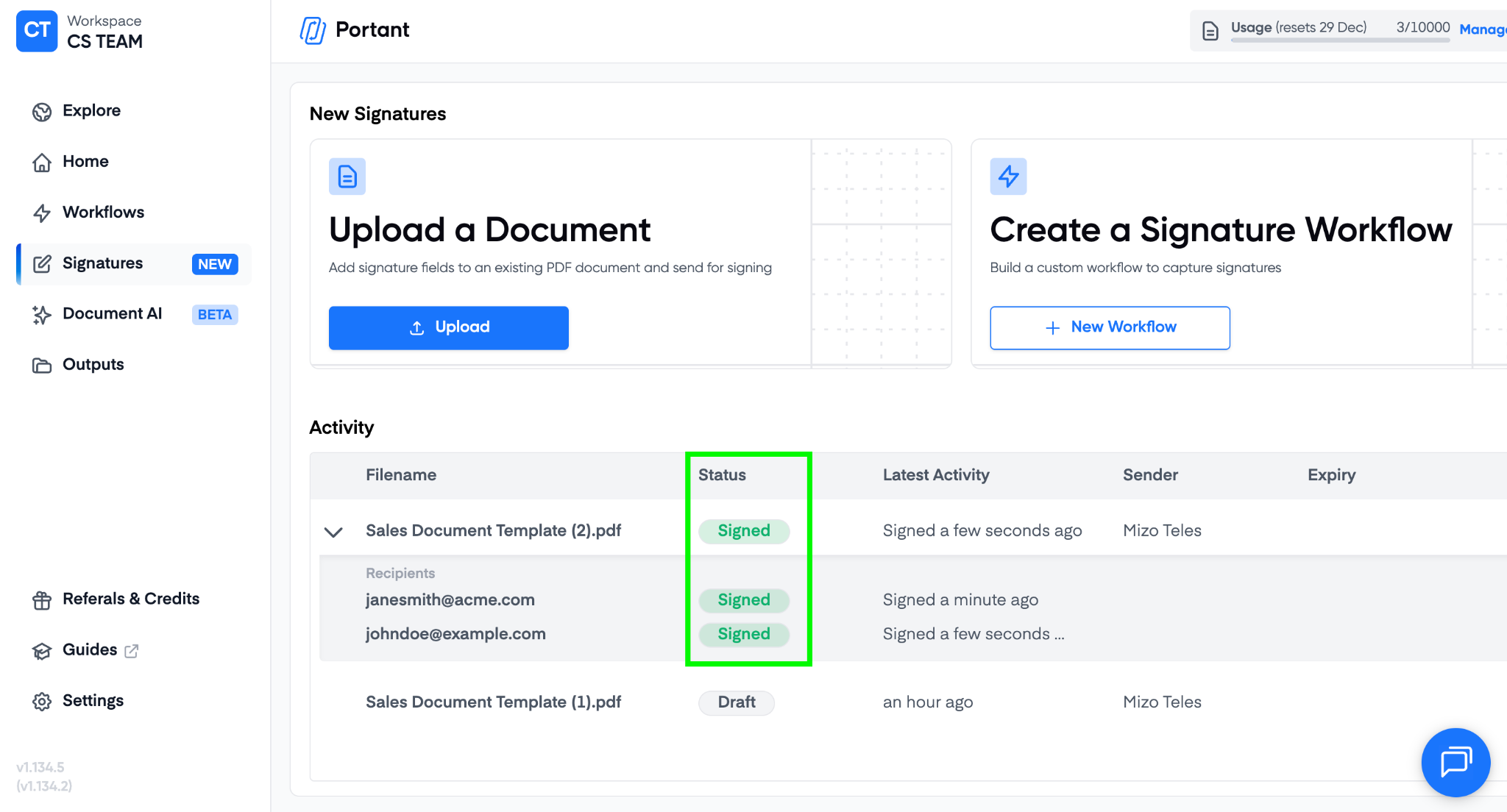
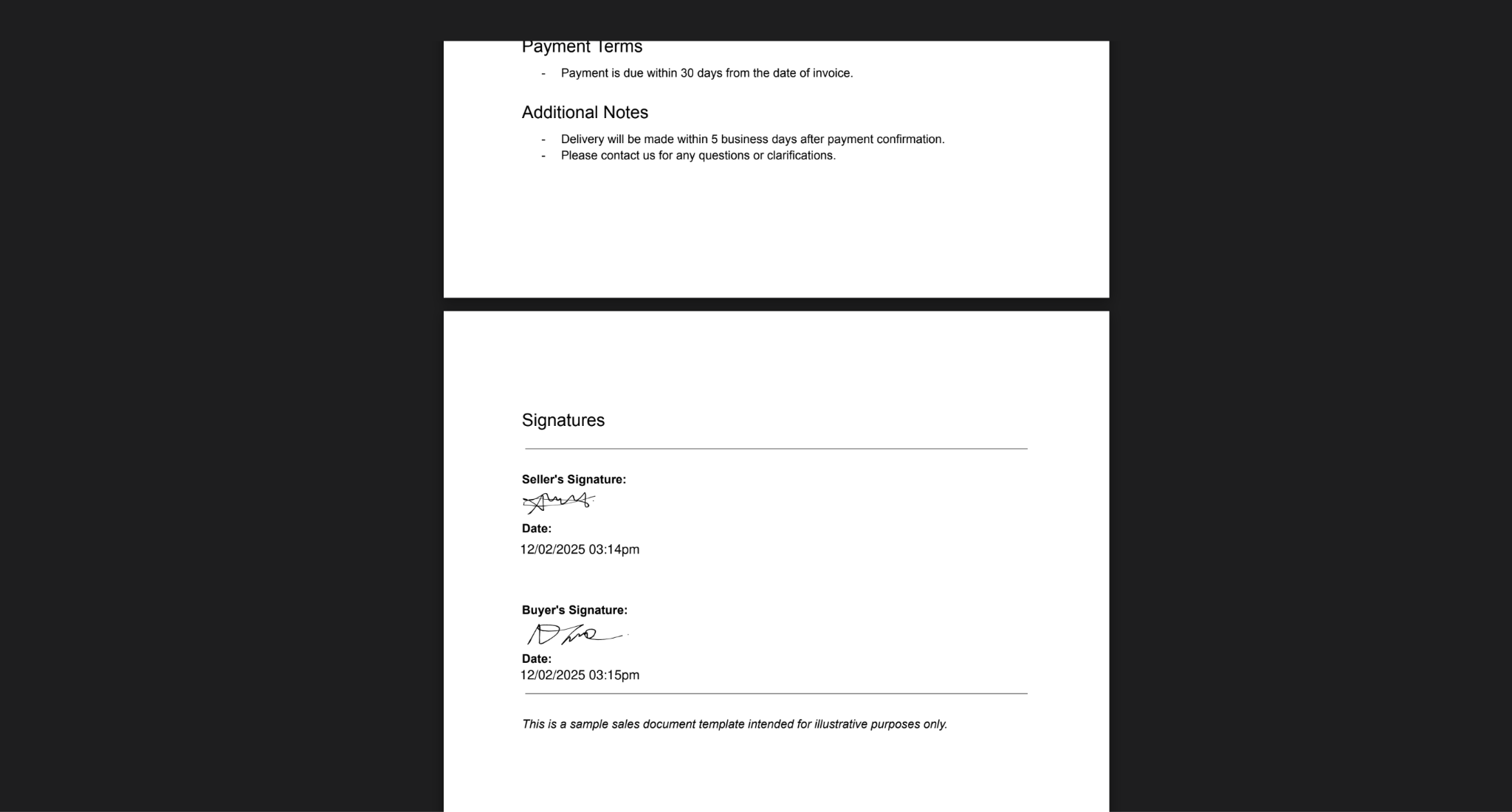
Click the document name in the table to open the signed PDF once it's complete.
Related
- Request signatures without a source: same idea, but starting from a Google Docs or Slides template instead of a PDF.
- Multiple signers: request signatures from up to four people.
- Audit trail: append a signing audit to the signed PDF.
- Compliance: country-by-country legal positioning.