
Share a doc via email
Send a personalised email from your workflow and attach the document Portant just generated. You can share a Google Doc or Slides link with set permissions, or attach a PDF, Word, or PowerPoint file.
Add an email block
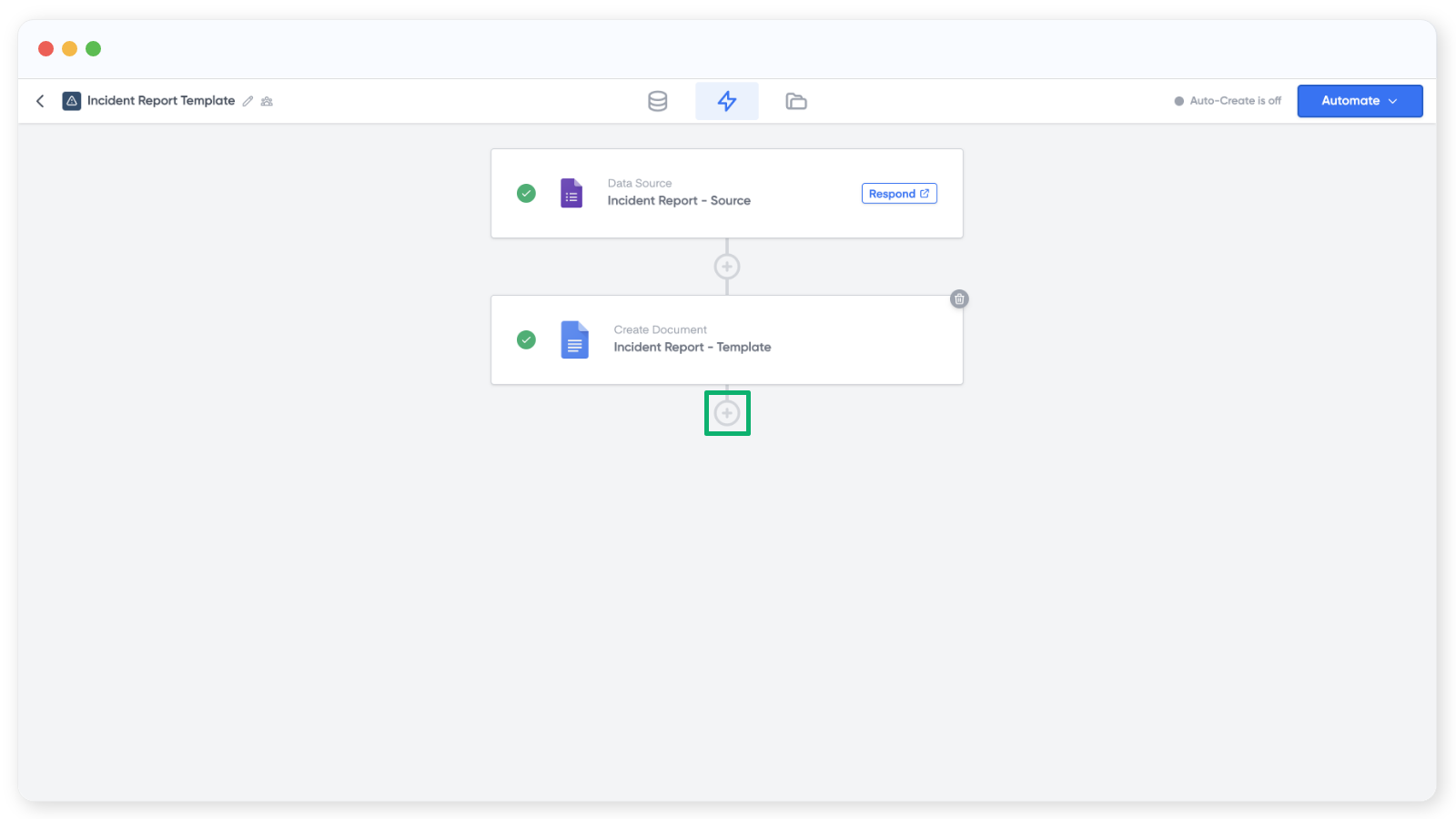
Click the + icon below the document block and choose Gmail.
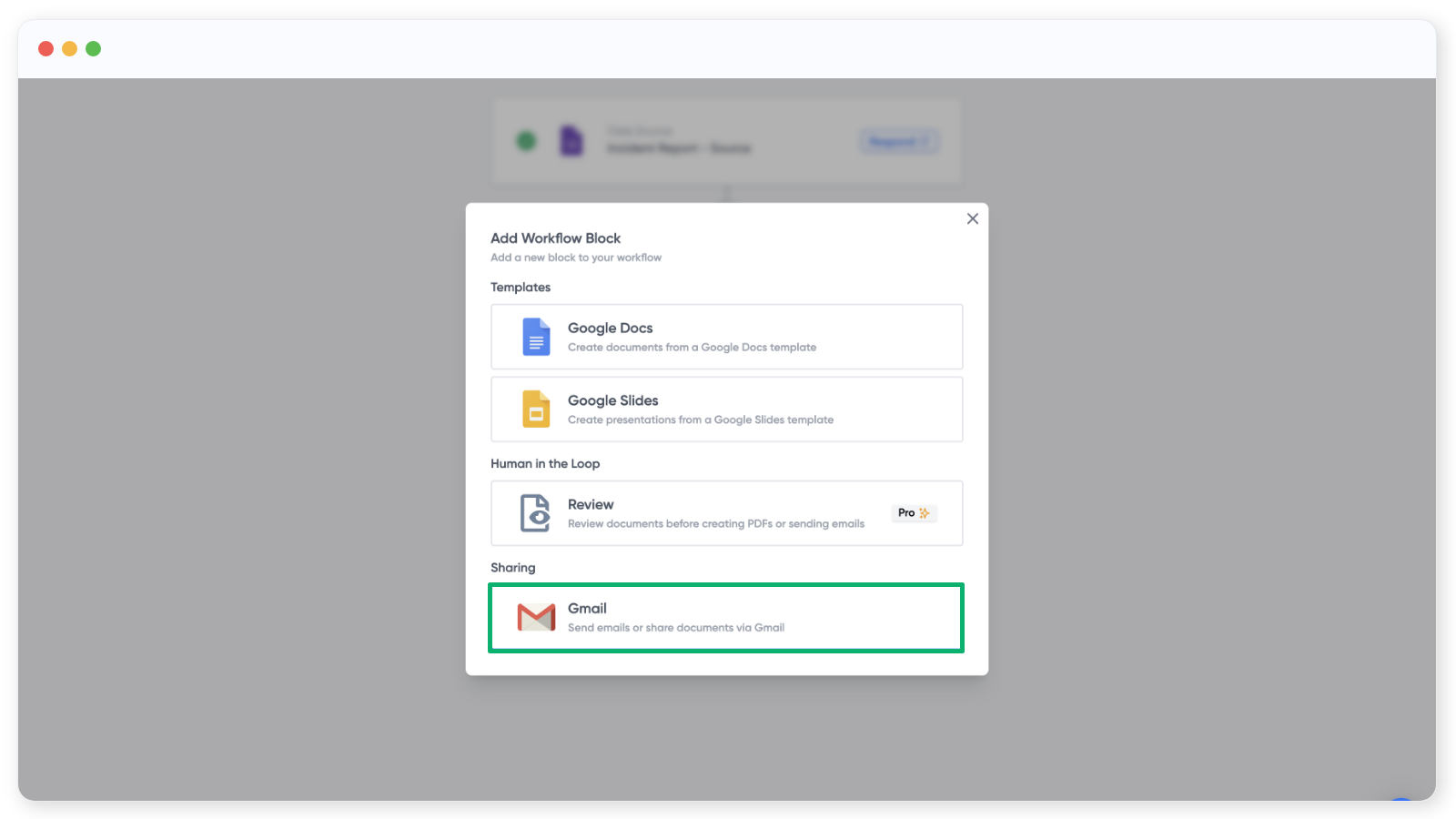
Note: You can also send from Microsoft Outlook. See Send Outlook emails.
In the email block you can fill in the To, CC, and BCC fields. Type addresses directly, or pull them from the source on the right using tags. Add a subject line and message below, and use the formatting options to style the body.
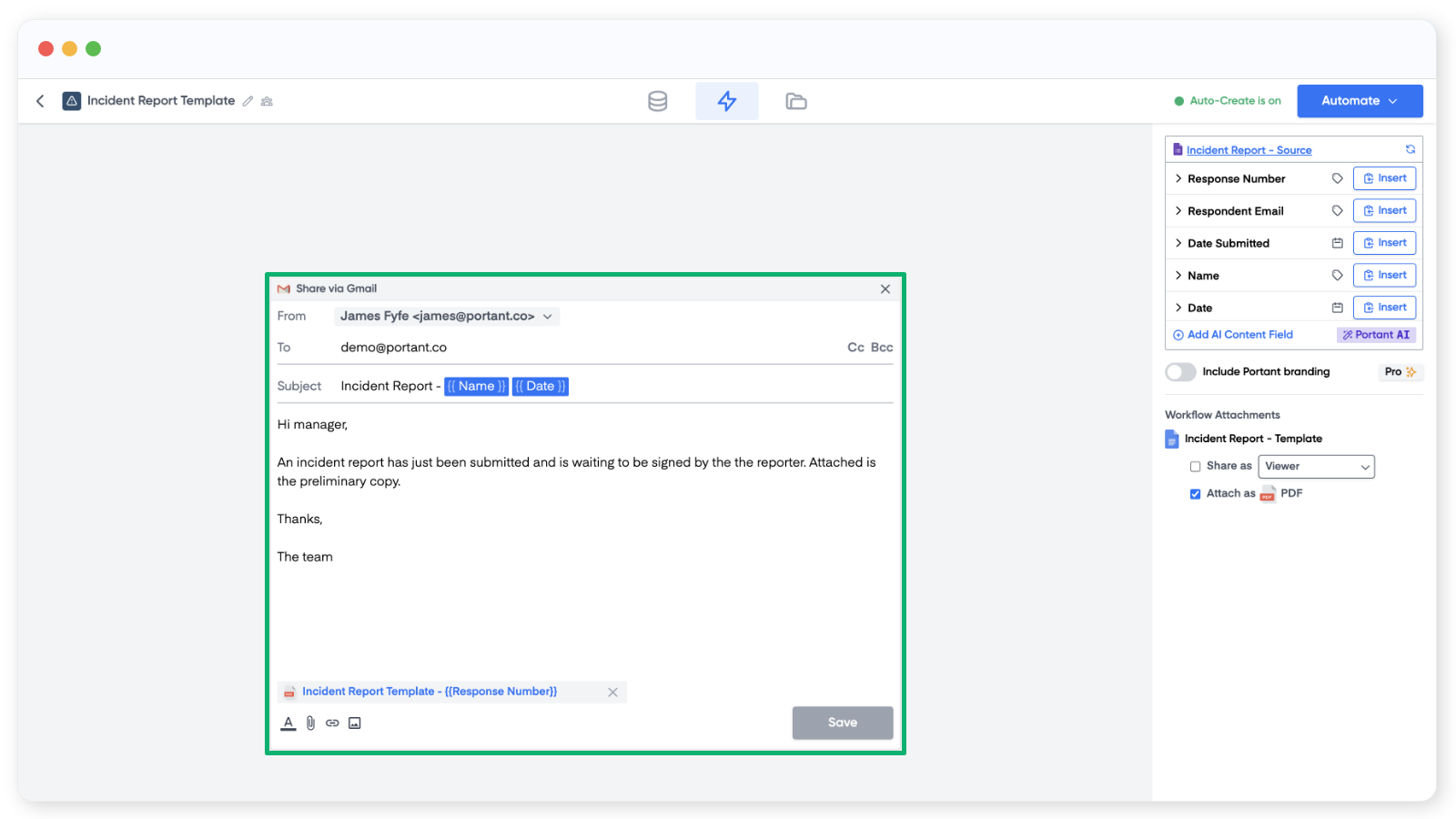
When you're done, click Save and close the email block.
Attach a document from your workflow
You can share an output from your workflow on the email. Google Docs and Slides files are sent as a link with the permission level you choose. PDF, Word, and PowerPoint files are sent as a real attachment.
To add an attachment, click the button on the right panel:
Or click the paper clip at the bottom of the email:
Attach a file from Google Drive
Pick any file from your Drive.
Attach a file from your workflow
Or pick the document Portant generated earlier in the workflow.
You can share a workflow file as:
- Google Docs or Slides: a link to the shared file is added to the email.
- PDF: a PDF copy is attached.
- Microsoft Word or PowerPoint: a Word or PowerPoint copy is attached.
For more on how the file is built, see File formats.
Set permissions on a Google Doc or Slides link
After choosing to share a Google Doc or Slides file, click the menu to set the permission level:
- Viewer: the recipient can open the file but can't change or share it.
- Commenter: the recipient can comment and suggest changes, but can't edit or share.
- Editor: the recipient can edit, accept or reject suggestions, and share with others.
Remove an attached file
Click the x button next to the attachment.