
Send from aliases
By default, Portant sends emails from the address you signed up with. If you'd rather send from a shared inbox, a different domain, or a personal alias, you can connect that address and switch to it inside any email block. You can have up to 99 different addresses set up at once.
Email aliases are a Pro feature. See the pricing page for plan details.
Examples of addresses you can send from:
- A non-Gmail address (Yahoo, Outlook, and so on)
- A work, school, or business domain or alias (
youralias@yourschool.edu,hello@yourcompany.com) - Another Gmail address
1. Add the alias to your Gmail account
The alias has to exist in Gmail first. Google's full guide is here: https://support.google.com/mail/answer/22370?hl=en. The short version:
- Open Gmail on your computer.
- In the top right, click Settings > See all settings.
- Click the Accounts and import (or Accounts) tab.
- In the Send mail as section, click Add another email address.
- Enter the name and address you want to send from.
- Click Next Step > Send verification.
- For school or work accounts, enter the SMTP server (for example,
smtp.gmail.comorsmtp.yourschool.edu) along with the username and password. - Click Add Account.
Then confirm you own the address:
- Sign in to the account you added.
- Open the confirmation email from Gmail.
- Click the verification link.
2. Add the alias to Portant
Open the Portant Settings page. At the bottom you'll see the email alias section.
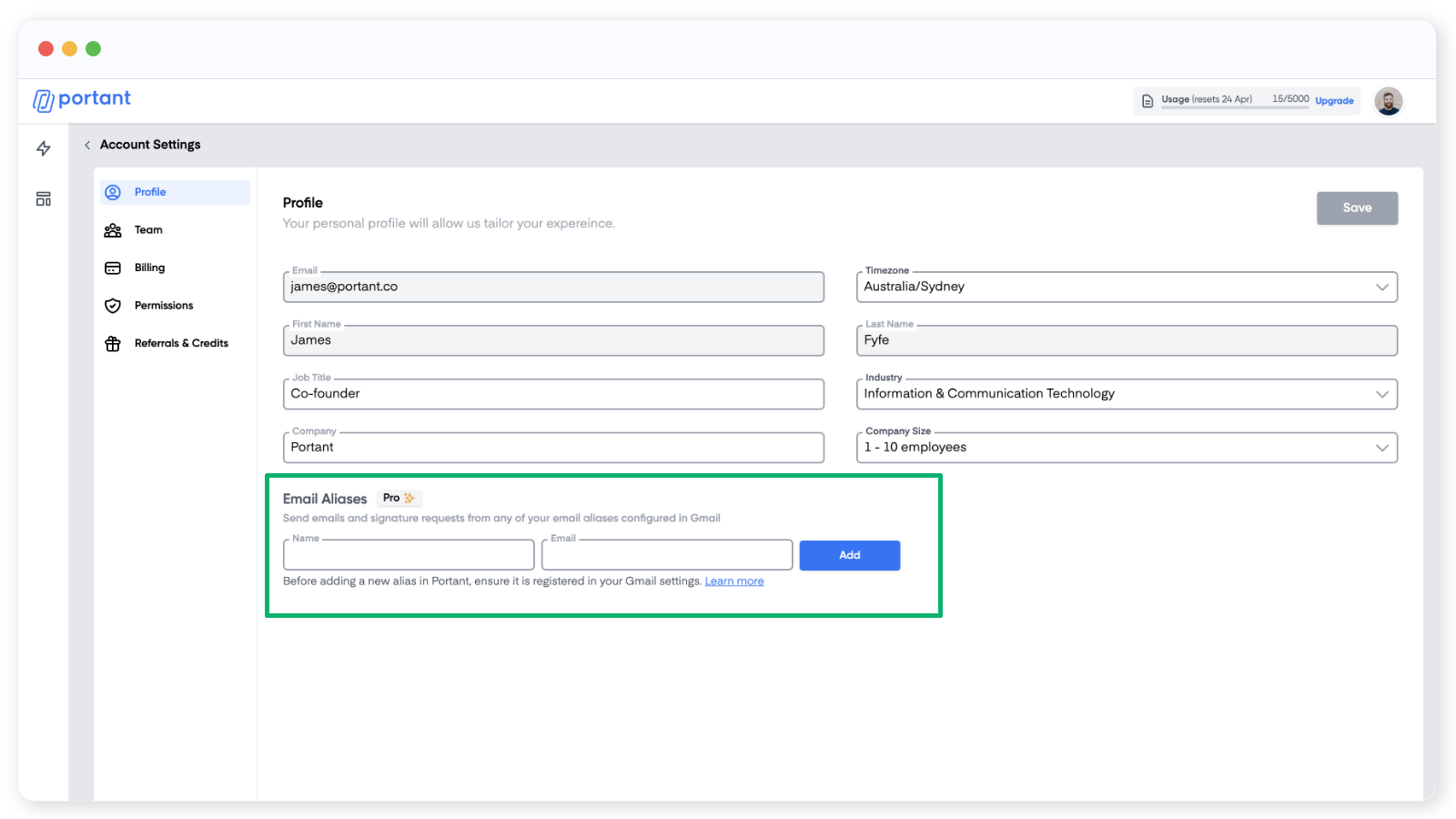
Tip: Only the email address has to match the alias you set up in Gmail. The display name in Portant can be different, and you can change the reply-to address inside the Gmail alias settings.
Add the name, then the email address, then click Verify. Portant sends a test email to confirm everything is wired up. Once it's working, you'll see a verified tag next to the alias.
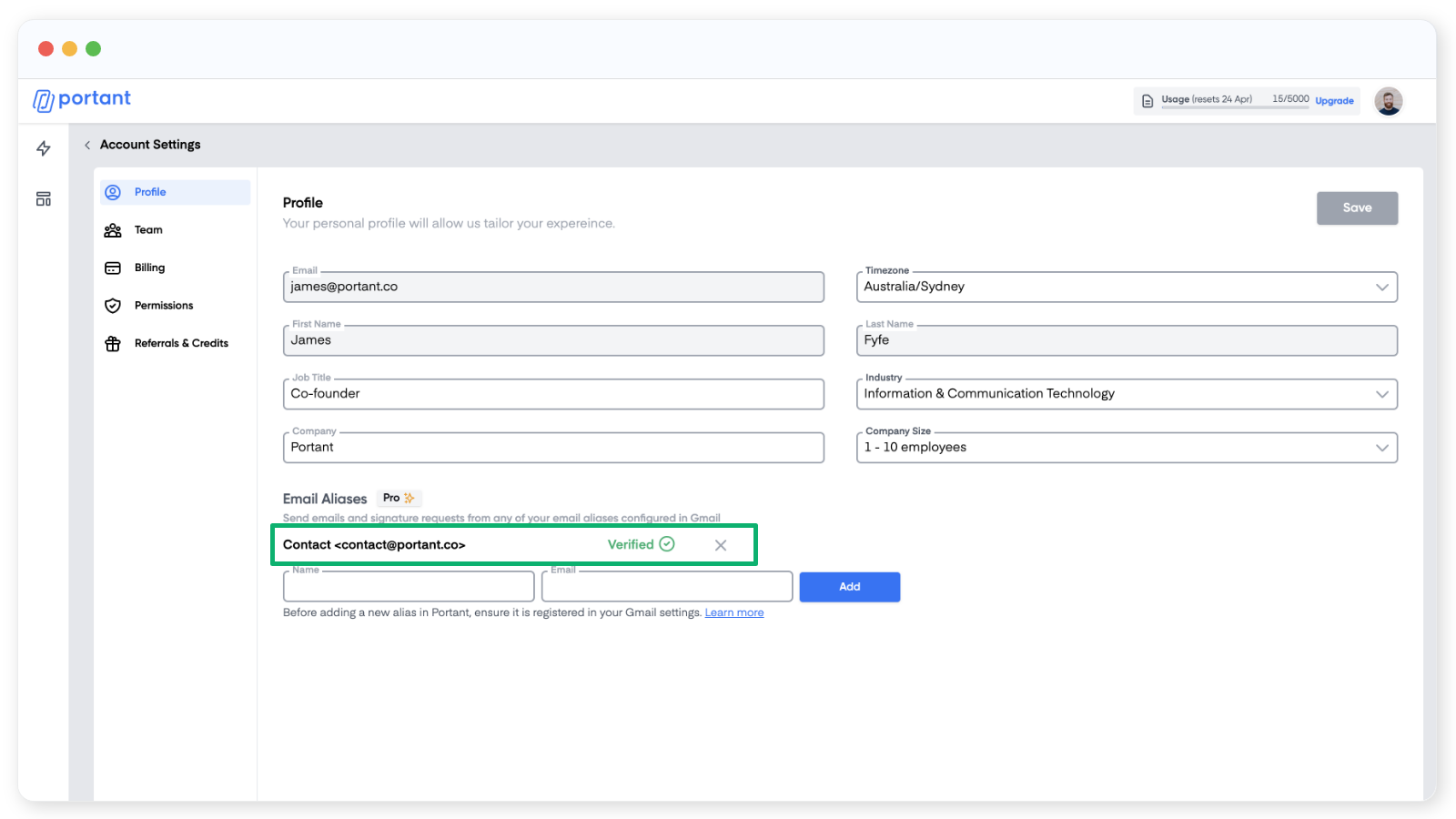
3. Pick the alias on an email block
Open any email block and change the From address using the dropdown.
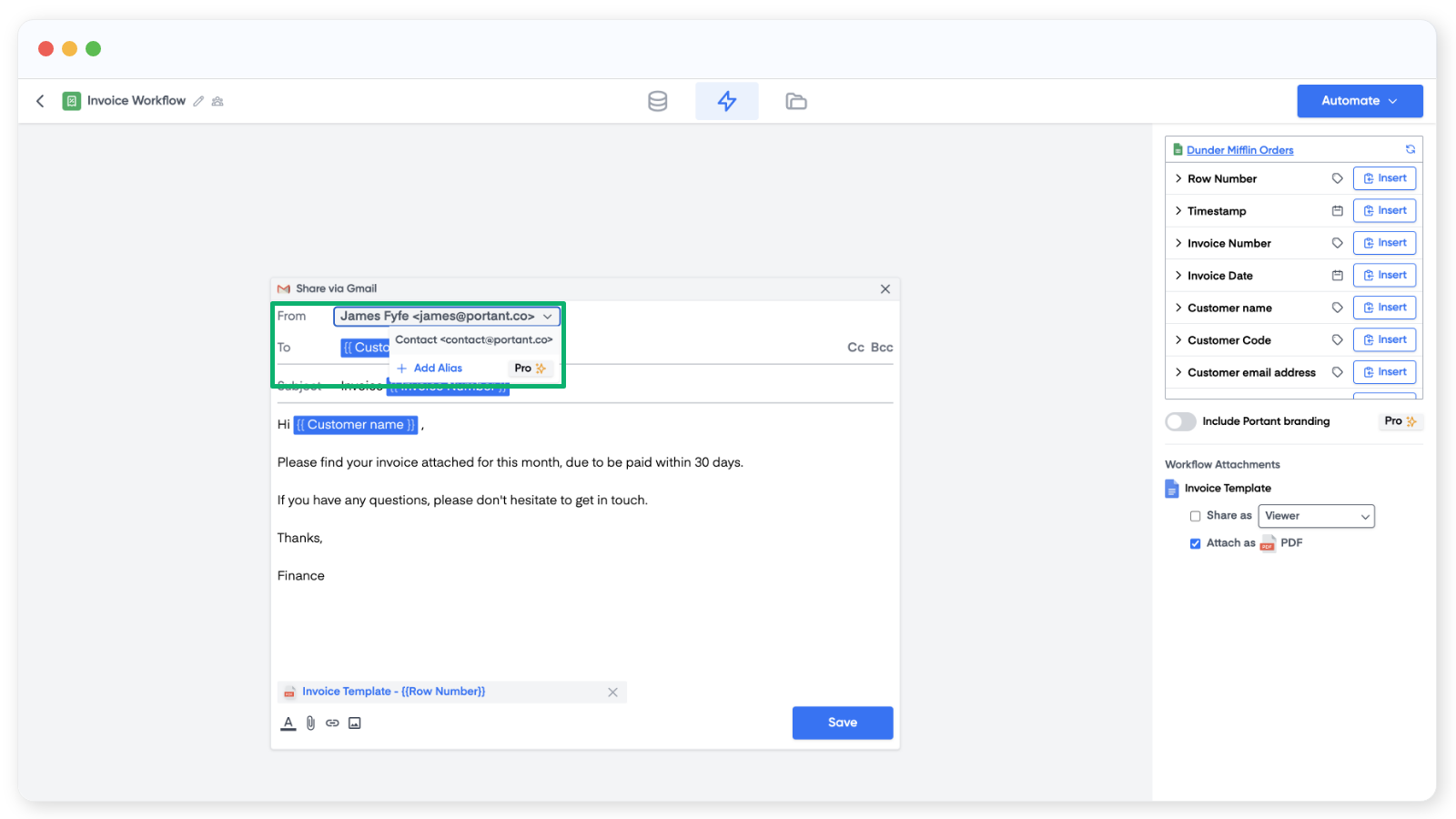
The dropdown also has a button to add another alias, which takes you back to the Settings page.
Tip: You can send emails from up to 99 different addresses on one account.