
Google Sheets data merge settings
Once you've added your tags, the Data Merge settings control how the merge runs and which rows get used.
Choose the type of merge
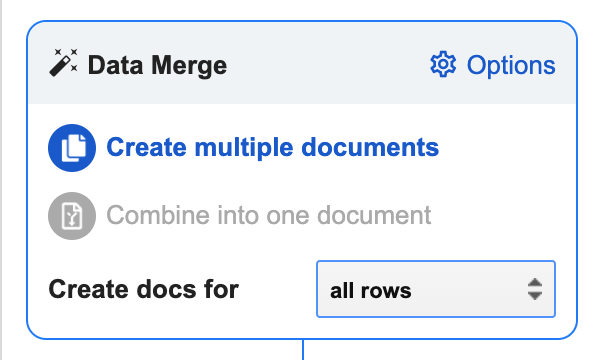
There are two merge types for a Google Sheets source:
- Create multiple documents, one document per row.
- Combine into one document, multiple rows of data into a single document. This option is only available for Sheets sources.
Filter the rows used
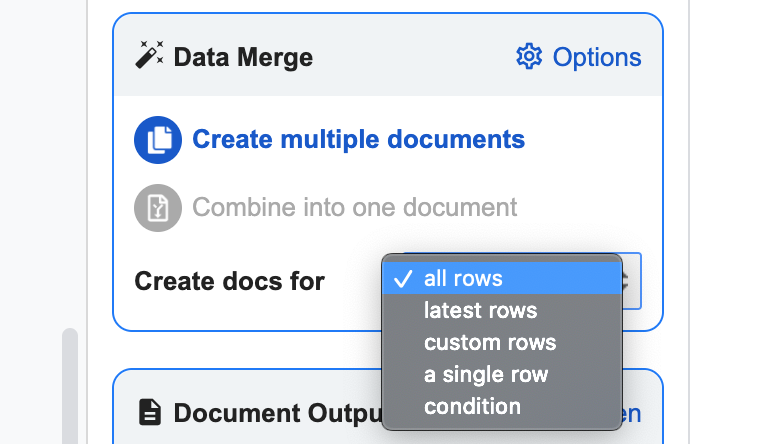
Pick which rows Portant should use for the merge:
- All rows, every row in the sheet (apart from the header).
- Latest rows, anything added since the last merge run.
- Custom rows, a specific range of rows.
- A single row, one row only.
- Condition, only rows that match a rule (for example, "Column A equals Yes"). For more on this, see conditional logic for documents.
Other options

Open the options menu in the top-right of the Data Merge box for more settings.
Auto-create
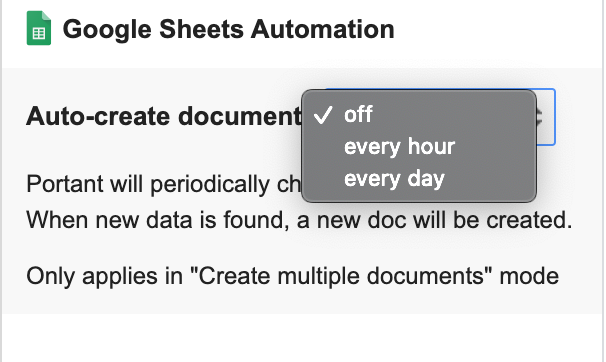
Portant checks the source sheet hourly or daily, and creates a new document any time a new row appears. For more on this, see auto-create from Google Sheets.
Document links
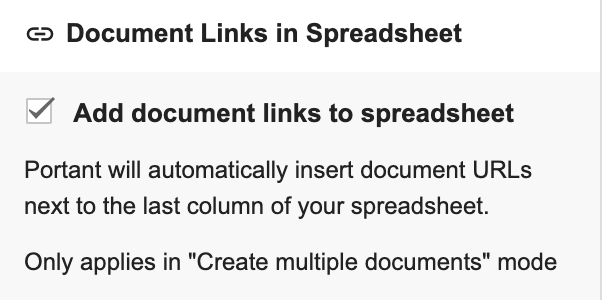
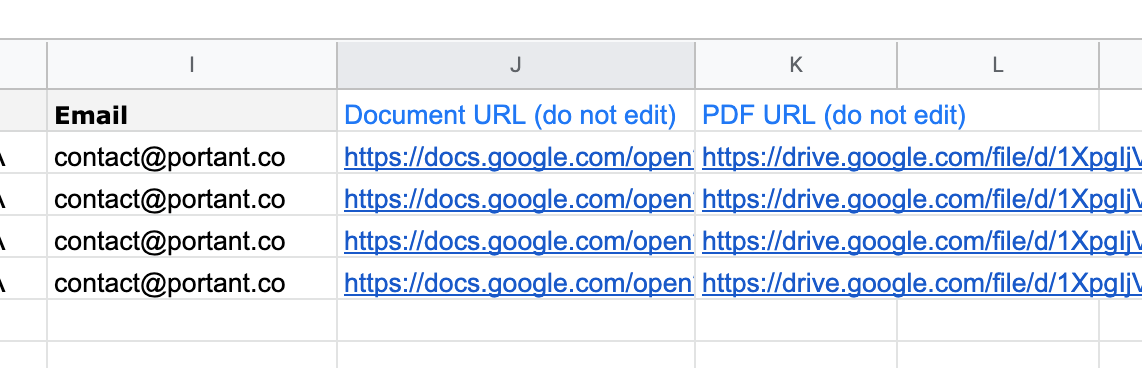
When this is on, Portant writes the document (and PDF) URL into the next column of your sheet, alongside the row that produced it.
Data grouping
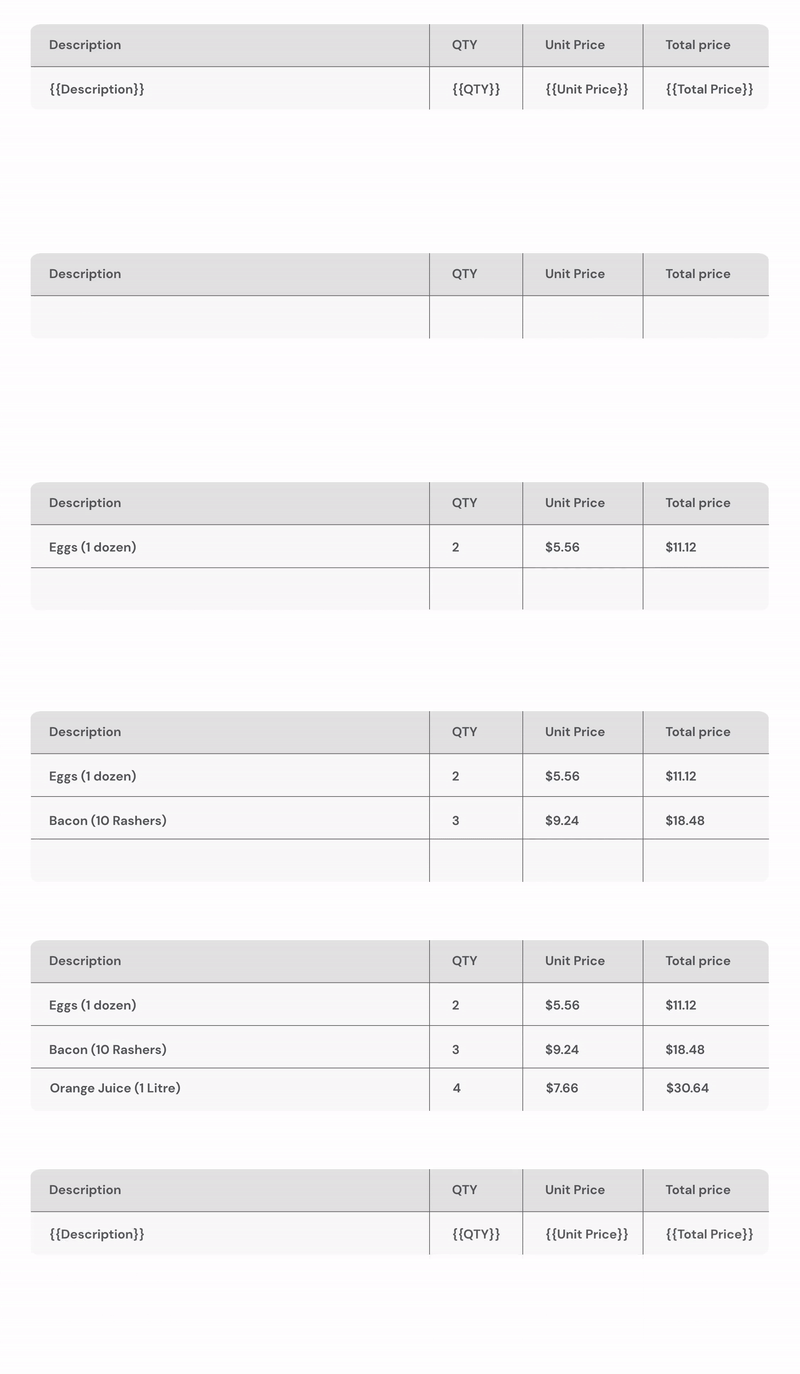
Portant adds extra rows to tables in your template so all related rows from your sheet land together (great for invoices and quotes with multiple line items). For more on this, see line items > data grouping.
Note: These options are only available in Create multiple documents mode.