Edit the output folder
Choose where Portant saves your output documents. You can rename the folder, move it inside Google Drive, or pick a completely different folder from the settings.
Rename the folder
When you create a merge, Portant creates an output folder in the same location as your template. The default name is [Template name] [Outputs].
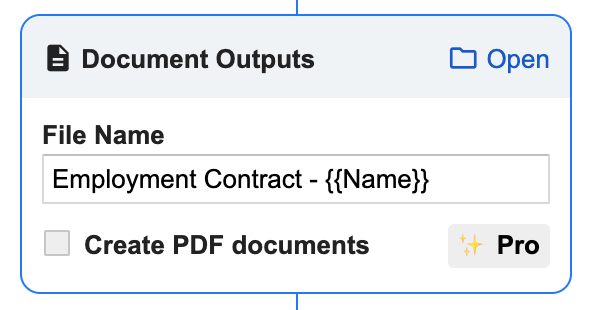
Click Open in the top-right of the Document Outputs box to jump to the folder.
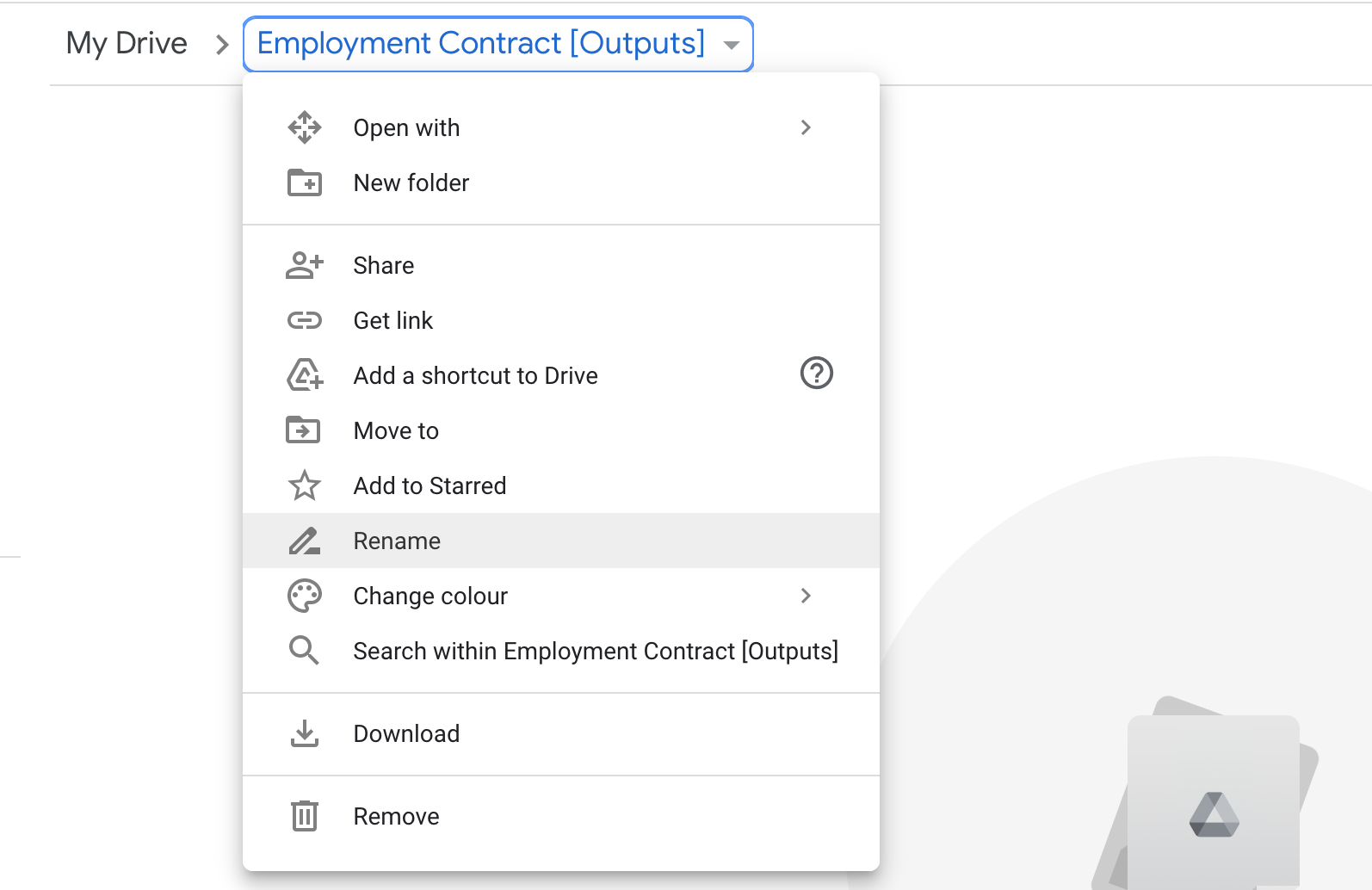
Click the folder name at the top of the page and select Rename. Type the new name and click OK. Portant will keep saving documents in the renamed folder.
Move the folder
You can move the output folder anywhere in your Google Drive. Portant will remember the new location.
Click Open in the top-right of the Document Outputs box.
Click the folder name at the top of the page and select Move to.
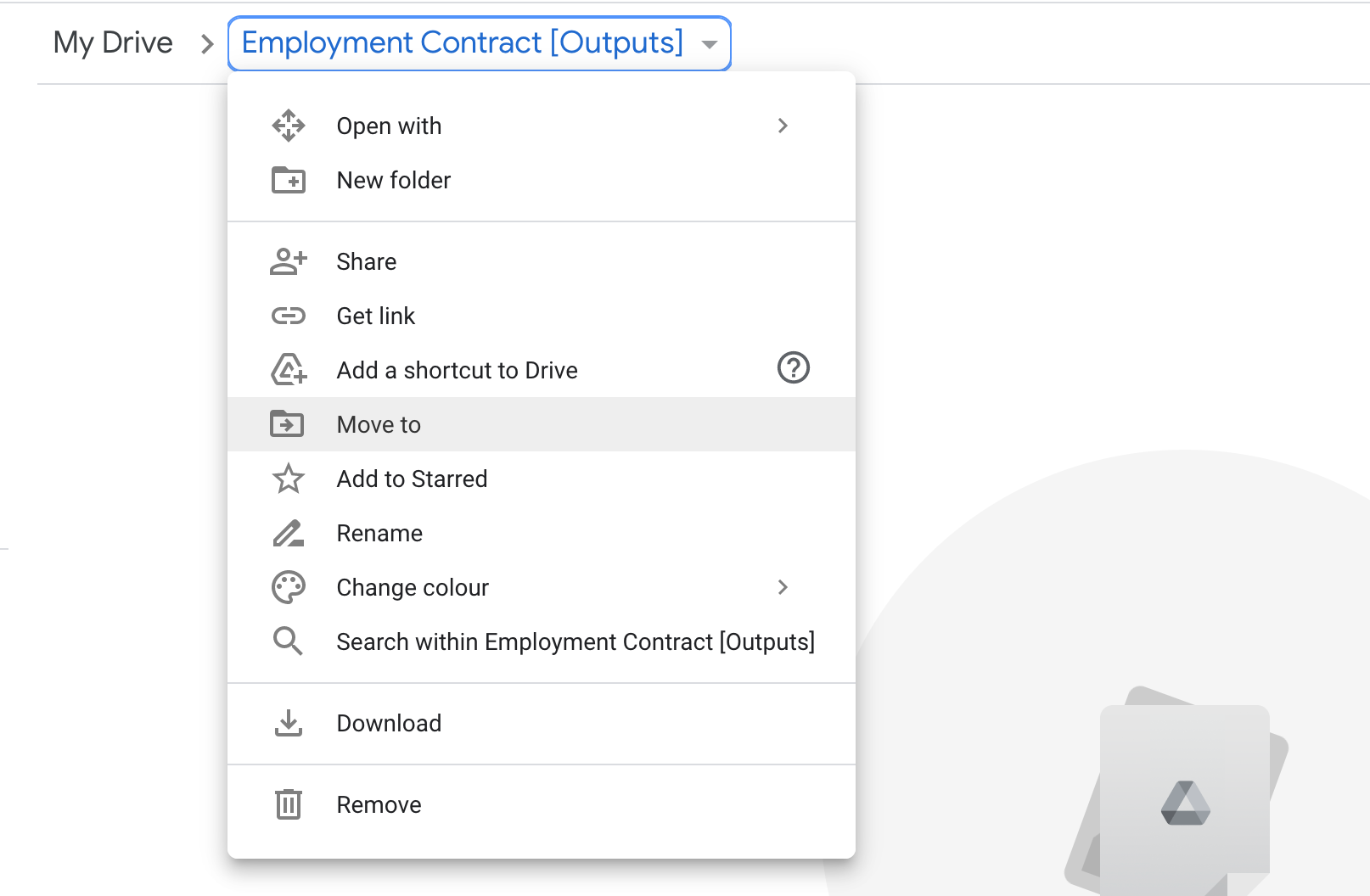
Pick the new location and click Move here.
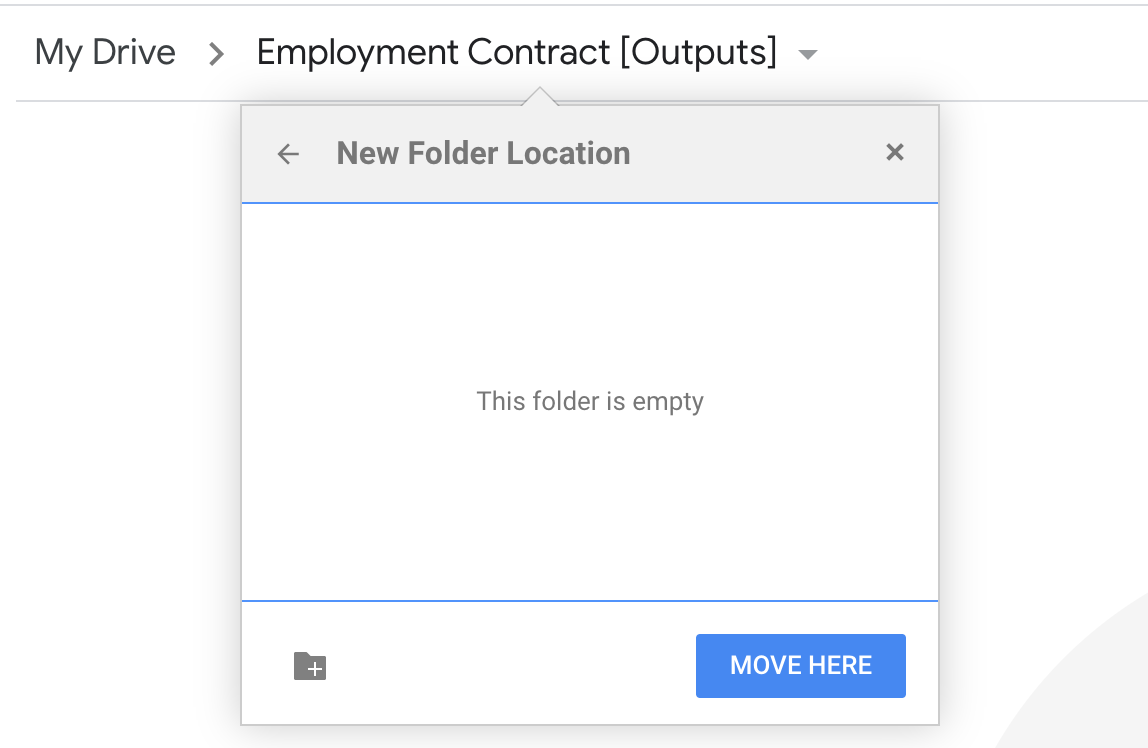
Tip: Click the New Folder icon in the bottom-left to create a new folder while you're at it.
Change the folder
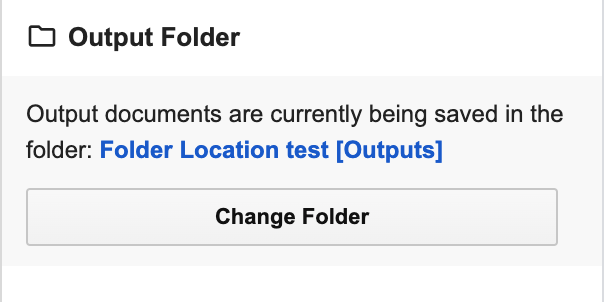
To save outputs in a different folder altogether, open the Data Merge settings via Data Merge > Options.
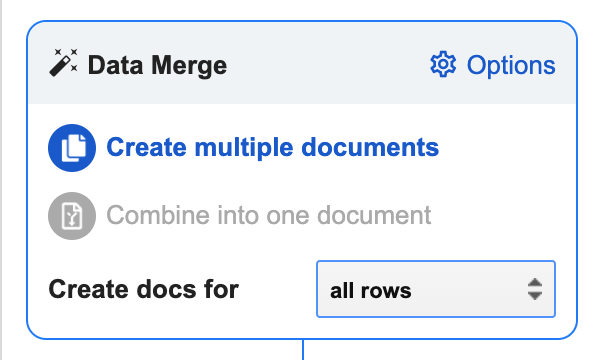
Scroll to the Output Folder section and click Change Folder. The current folder is shown in blue.