
Invalid tags
If your source table shows the message "This document contains invalid tags," it means Portant has spotted at least one tag in your template that no longer matches a field in the source. Here's how to find them and fix them.
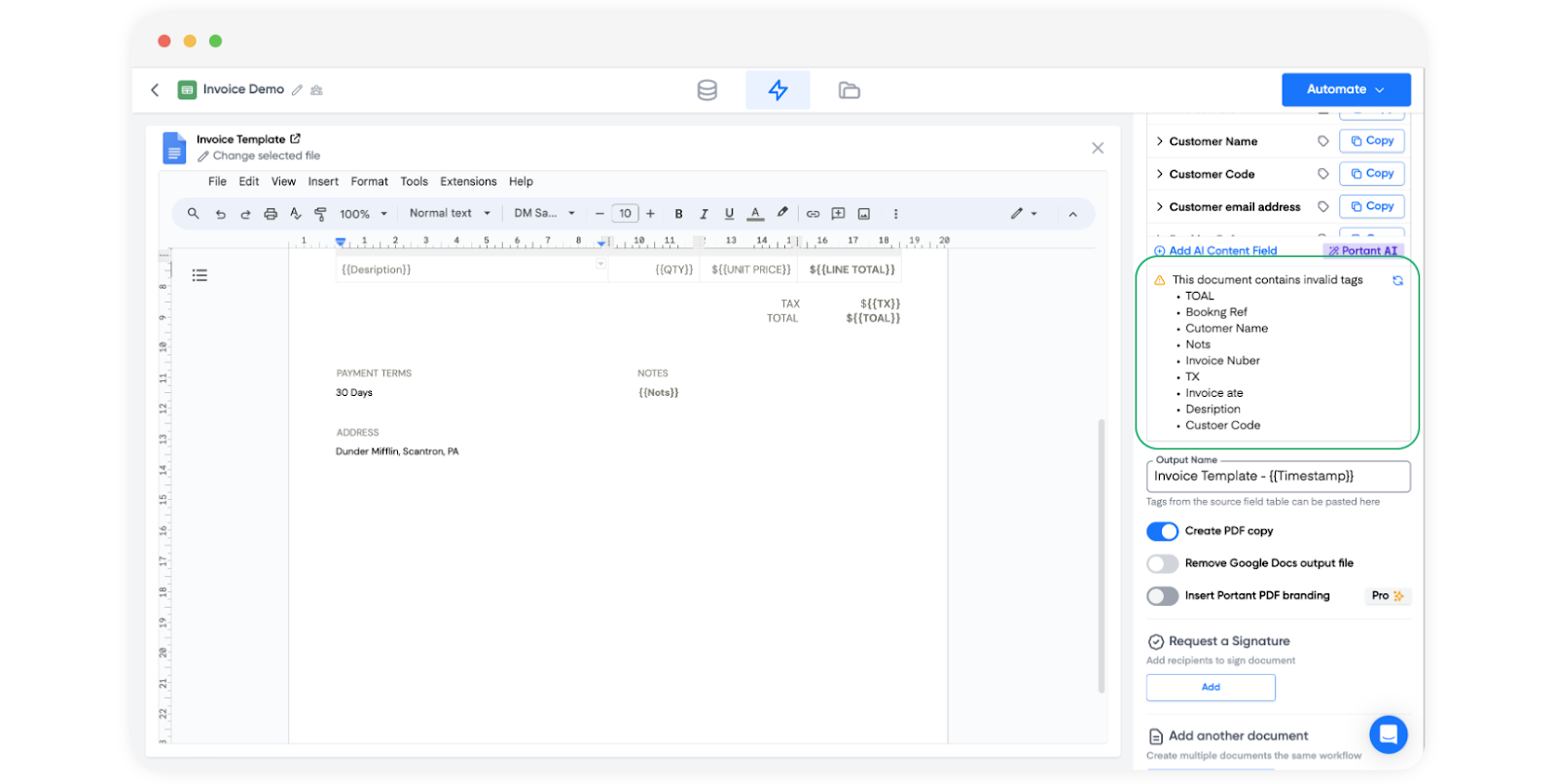
Check for invalid tags
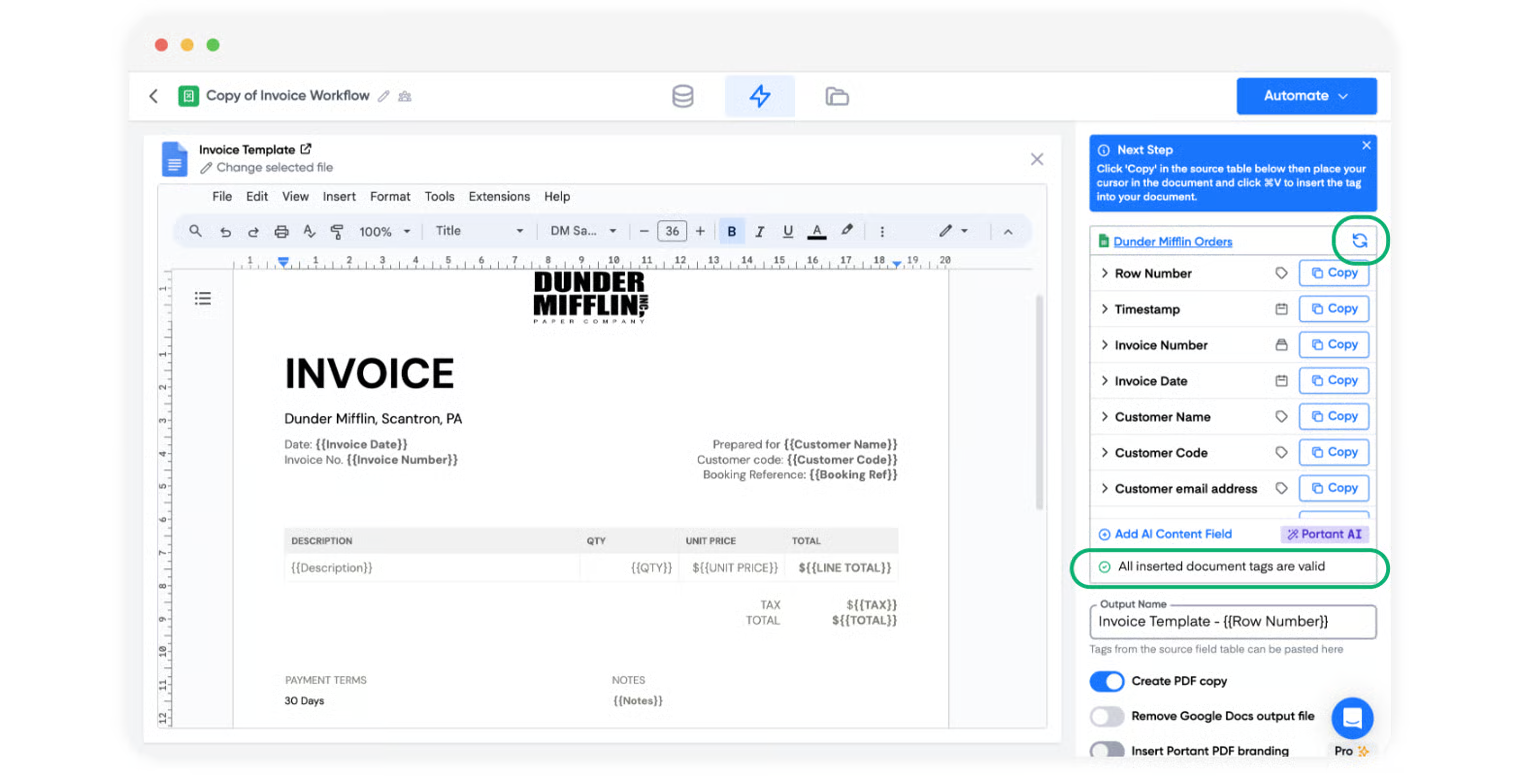
To check that every tag in your template still maps to a field in the source, click the refresh button in the top right of the source table:
This refreshes the source connection and checks the template for any tags that no longer match. A tag can become invalid because:
- The field has been removed from the source
- The field has been renamed
- The tag has been edited inside the document
Fix the invalid tags message
The most common causes are:
- Extra spaces inside the tag
- Special characters in the tag
- Inconsistent formatting (different fonts, sizes, or styles applied across parts of the same tag)
Follow these steps to clear it:
- Remove the affected tags from the template, refresh your source table, and reinsert them.
- When you reinsert, paste without formatting. On Mac, use
Cmd + Shift + V. On Windows, useCtrl + Shift + V. - Look at the tag in the template. For each tag flagged as invalid, check for extra spaces inside the curly braces.
- Consider using a custom tag name for fields with long or awkward labels (especially Google Forms questions). It's easier to find and reinsert a short tag than a full sentence.
Once it's resolved, refreshing the source table shows the message "All inserted document tags are valid":
For more on running this check on demand, see the tag checker.