
Conditional logic for emails
Use conditional logic to control when an email is sent. Set rules based on the source data, so an email only goes out when it should: a follow-up only when a deal is won, a reminder only when a status is "pending", a thank-you only when payment is "received".
Add a condition to an email
Open the email settings by ticking Automatically email created docs in the Share via email box.
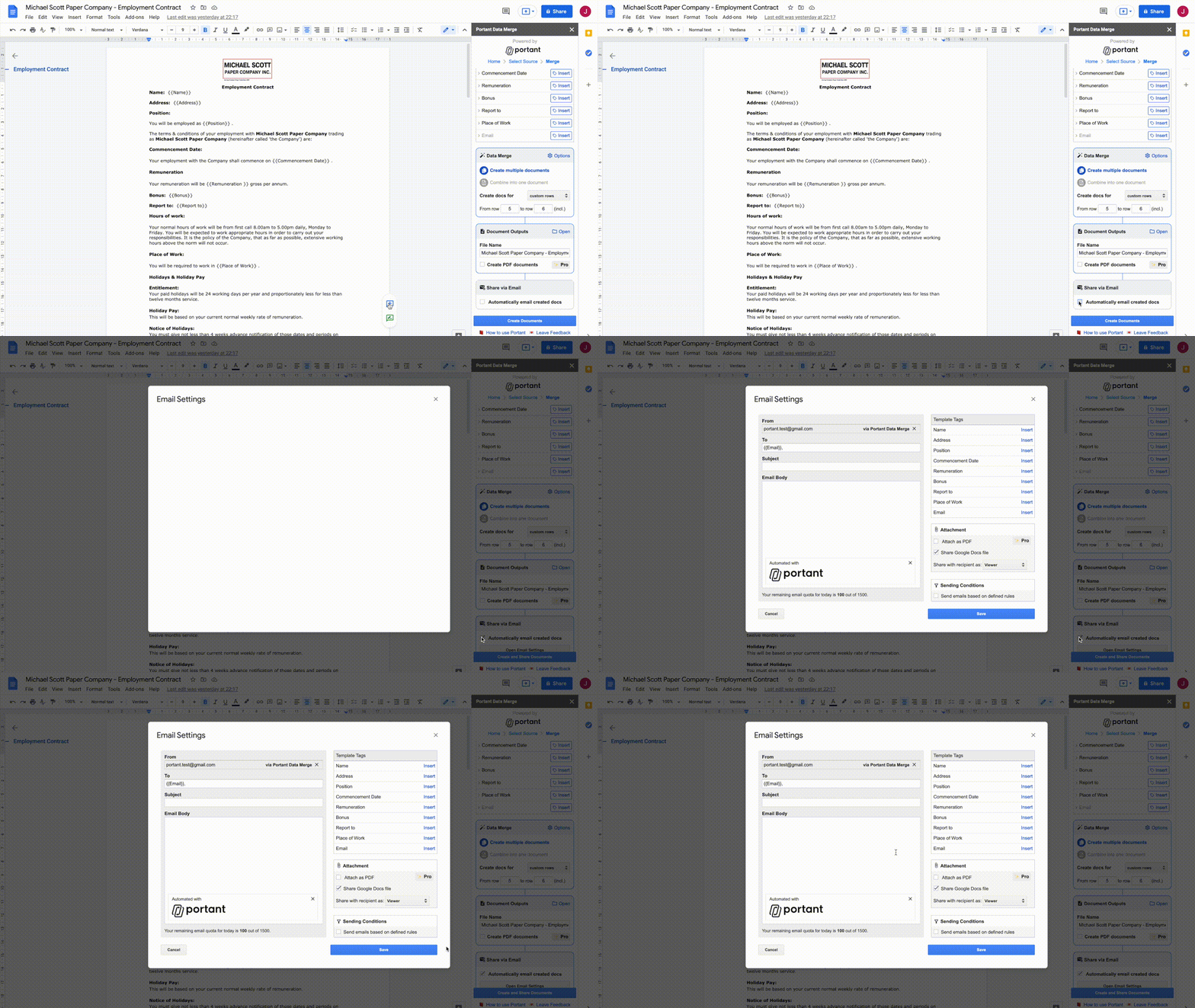
In the email settings modal, find Sending conditions on the right, under Attachments.
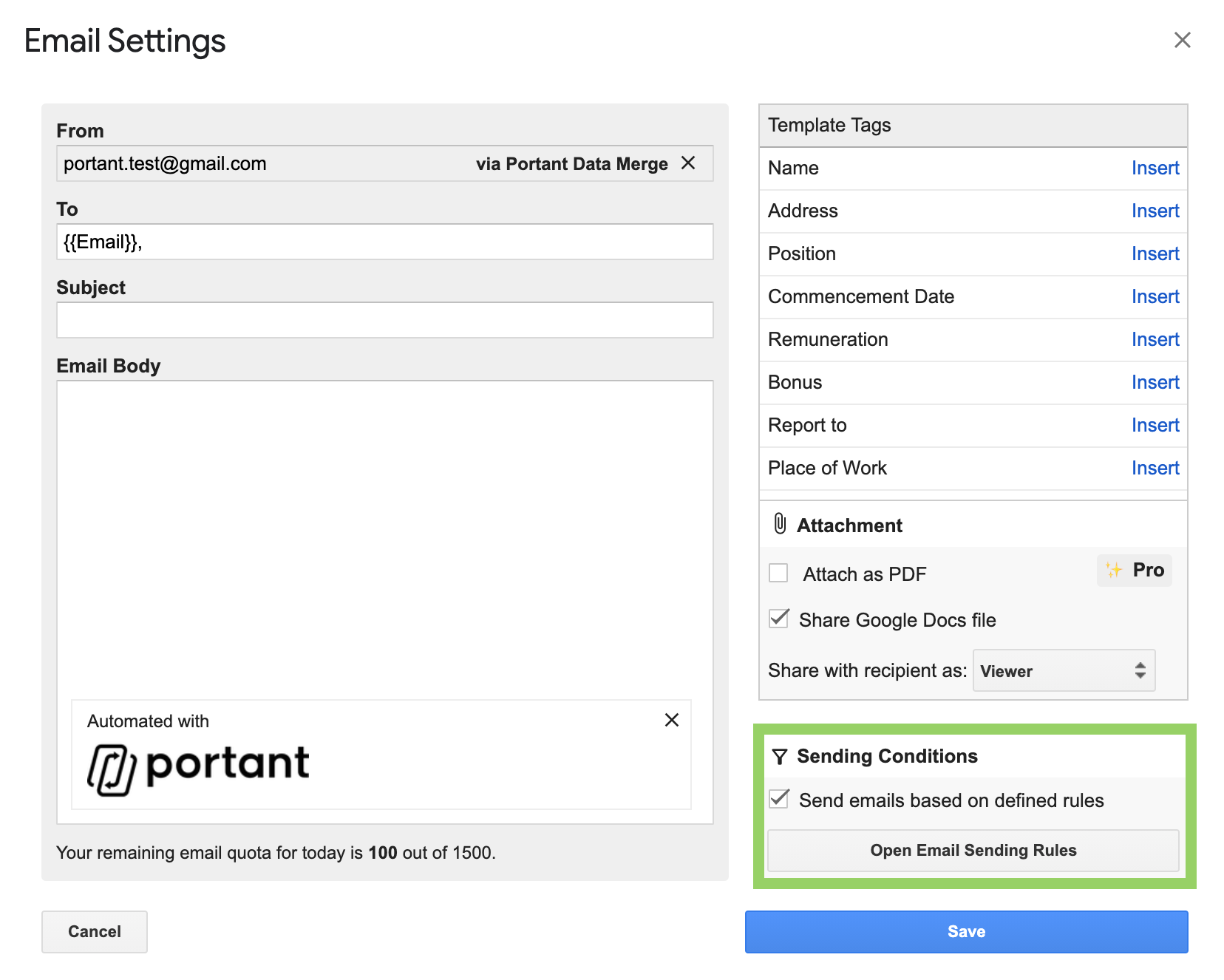
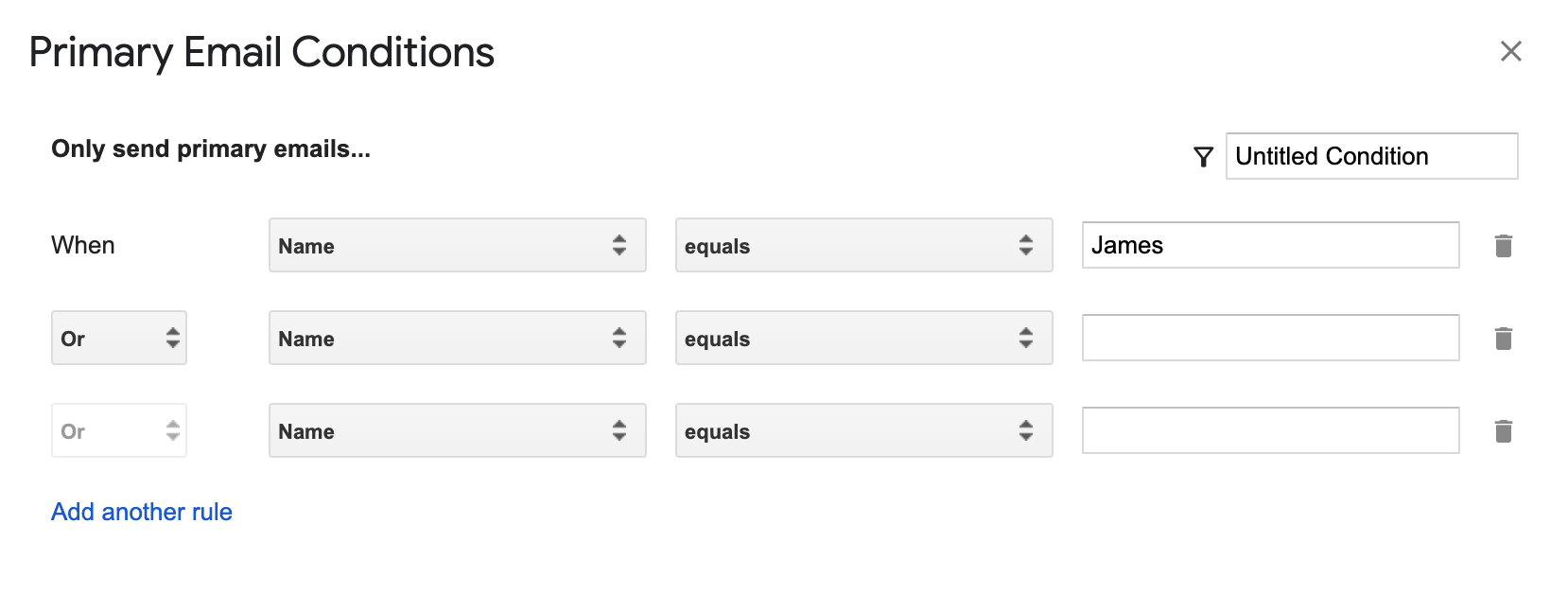
Tick Send emails based on defined rules to open the email conditions modal. You can name the rule set in the top-right corner.
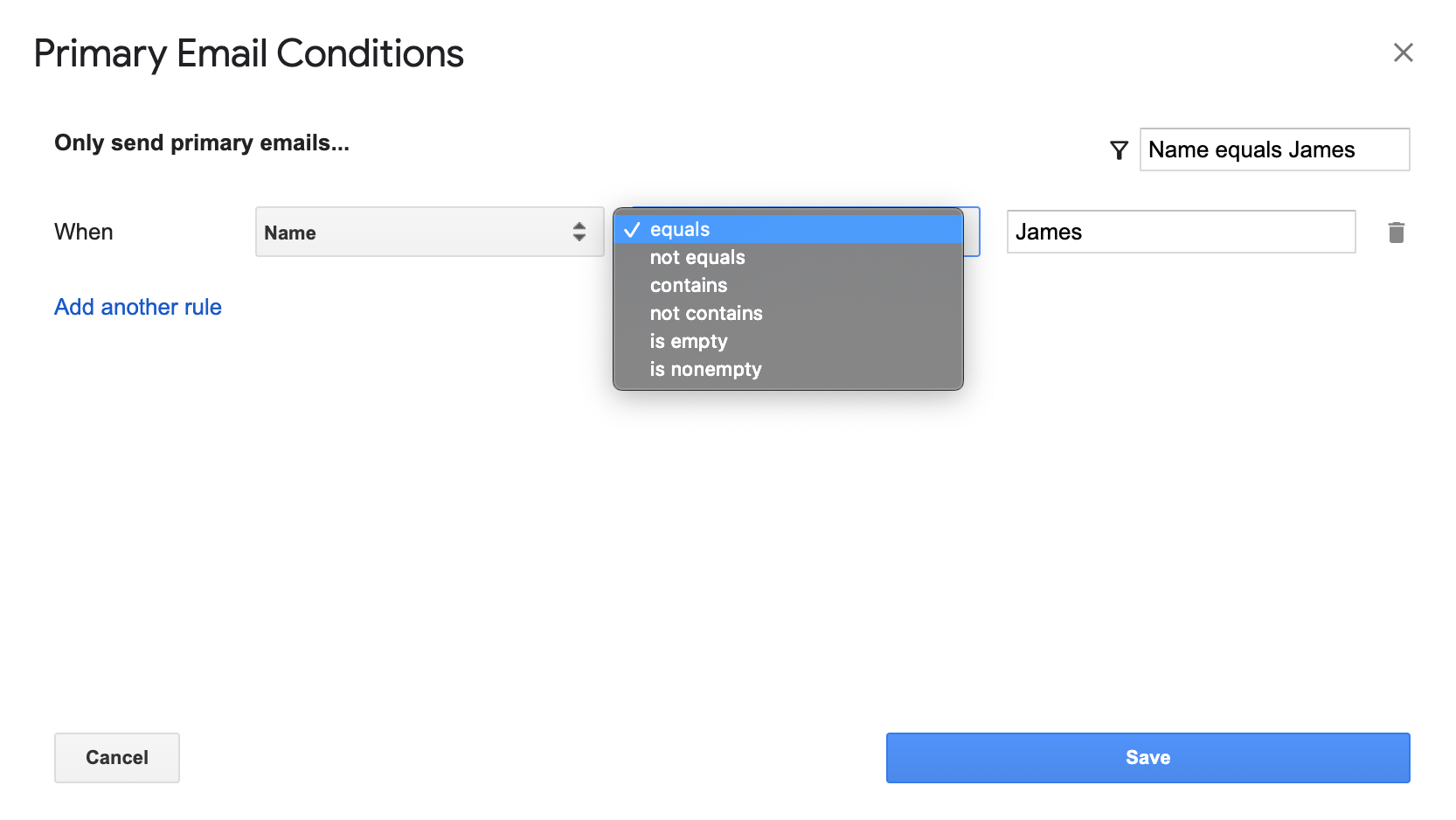
Pick the field the rule is based on, choose an operator, and enter the value to compare against. The available operators are:
- equal
- not equals
- contains
- not contains
- is empty
- is nonempty
Combine multiple rules
You can stack rules with AND or OR.
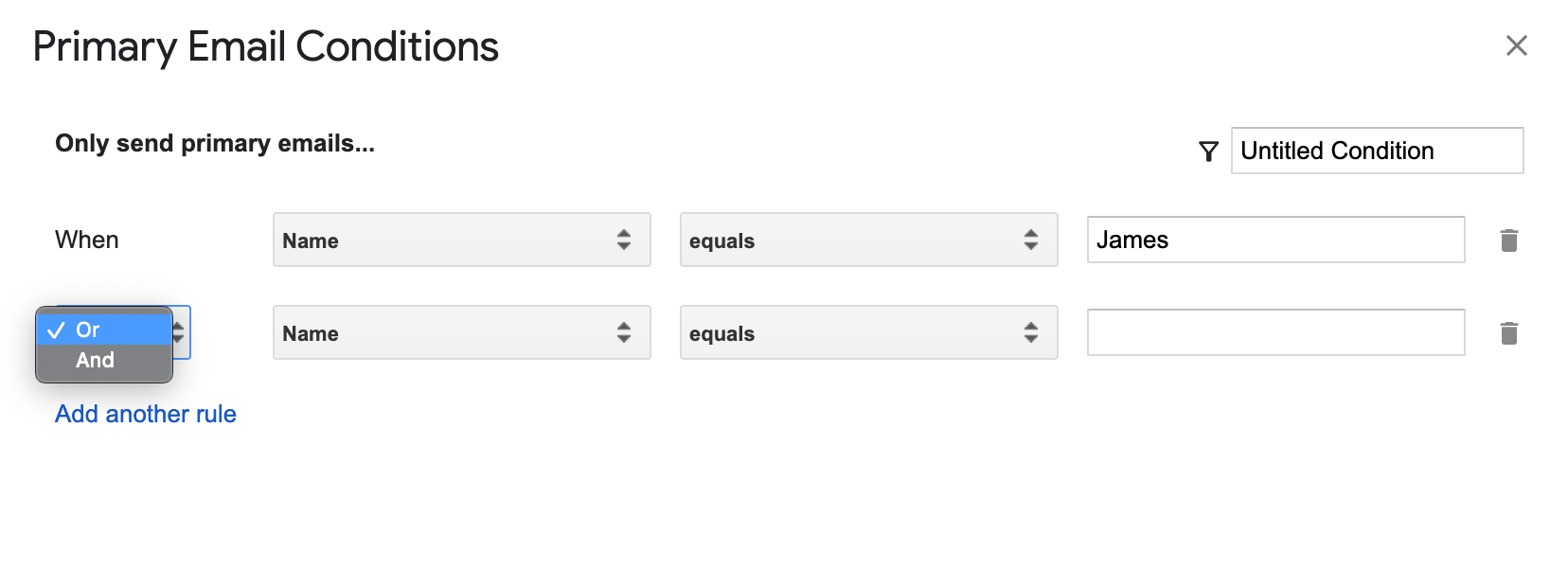
- AND sends the email only when every rule is true.
- OR sends the email when any rule is true.
Once you've picked AND or OR for the second rule, every additional rule has to use the same operator. To remove a rule, click the trash can on the right.
When you're done, click Save in the bottom-right.
Related
- Conditional logic for documents, only generate a document when the rules match.
- Tag if statements, show or hide content inside an email or document based on the data.