
Conditional logic for documents
Use conditional logic to only generate a document when a row in your source data matches the rules you set. Helpful for skipping rows that aren't ready, separating "won" from "lost" deals, or running a workflow only on a specific subset of your data.
Set up a condition
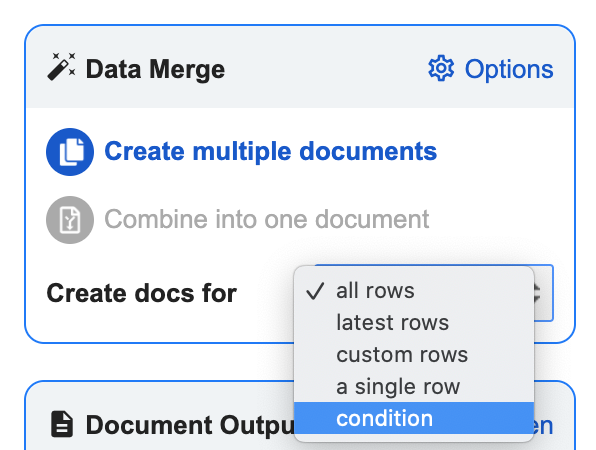
In the Data Merge box, open the dropdown and select Condition.
Pick the field the condition is based on from the next dropdown. If the field you want isn't there, click refresh in the top-right of the data sources table to pull in the latest source structure.
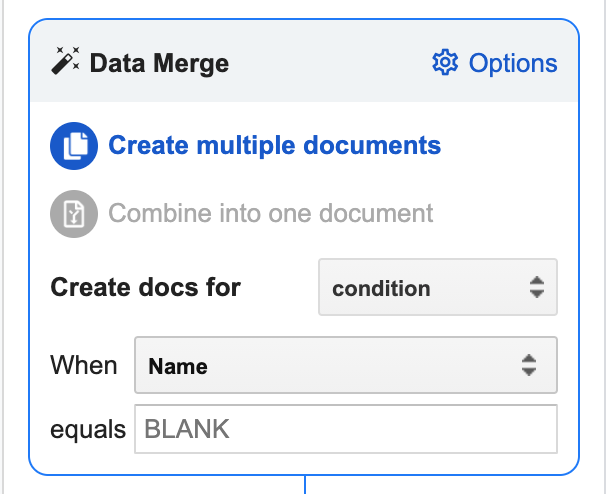
Enter the value the field has to equal for the merge to run. That's it. Portant will only create a document when the rule is true.
Combine multiple conditions
The built-in condition is a single rule with the equals operator. To combine conditions or use other operators (like AND, OR, or "contains"), add a helper column to your spreadsheet that does the logic for you, then use the result of that column as your Portant condition.
For example, return "Merge" only when both columns match:
=IF(AND(A4="Apple",B4="Orange"),"Merge","")
Or return "Merge" when either word appears in column A:
=IFERROR(IFS(A2="Apple", "Merge", A2="Orange", "Merge"),"")
Then set your Portant condition to Merge based on this column equals "Merge".
For more on combining IF, AND, and OR in Google Sheets, see this guide.
Related
- Conditional logic for emails, only send an email when the rules match.
- Tag if statements, show or hide content inside a document based on the data.